How to Connect to RDP on a Different Port, and How to Change the Port
Connect to Remote Desktop on a custom port by adding :port to the address, and change the port on a Windows server safely: registry, firewall, restart, test.
2 min readBy Swati
Reviewed by the AmazingRDP technical team
Changing the port needs administrator rights. See our Admin RDP plans. See Admin RDP from $9.99
Remote Desktop listens on TCP port 3389 unless someone has changed it. If your server uses another port, you add it to the address when connecting. If you want to change the port on your own server, that takes three steps and one precaution.
Connect to a different port
Write the port after the address, separated by a colon:
203.0.113.10:9978| Client | Where to type it |
|---|---|
Windows: Remote Desktop Connection (mstsc) | In the Computer field |
| Windows, from the Run box | mstsc /v:203.0.113.10:9978 |
| Windows App on macOS, iOS, Android | In PC name |
| Remmina on Linux | In Server |
With a domain name it is the same: server.example.com:9978. More on the client in how to connect to RDP.
Change the port on the server
You need administrator rights. Do the firewall step before you disconnect, or the server becomes unreachable.
1. Set the new port. Open the Registry Editor (regedit) and go to:
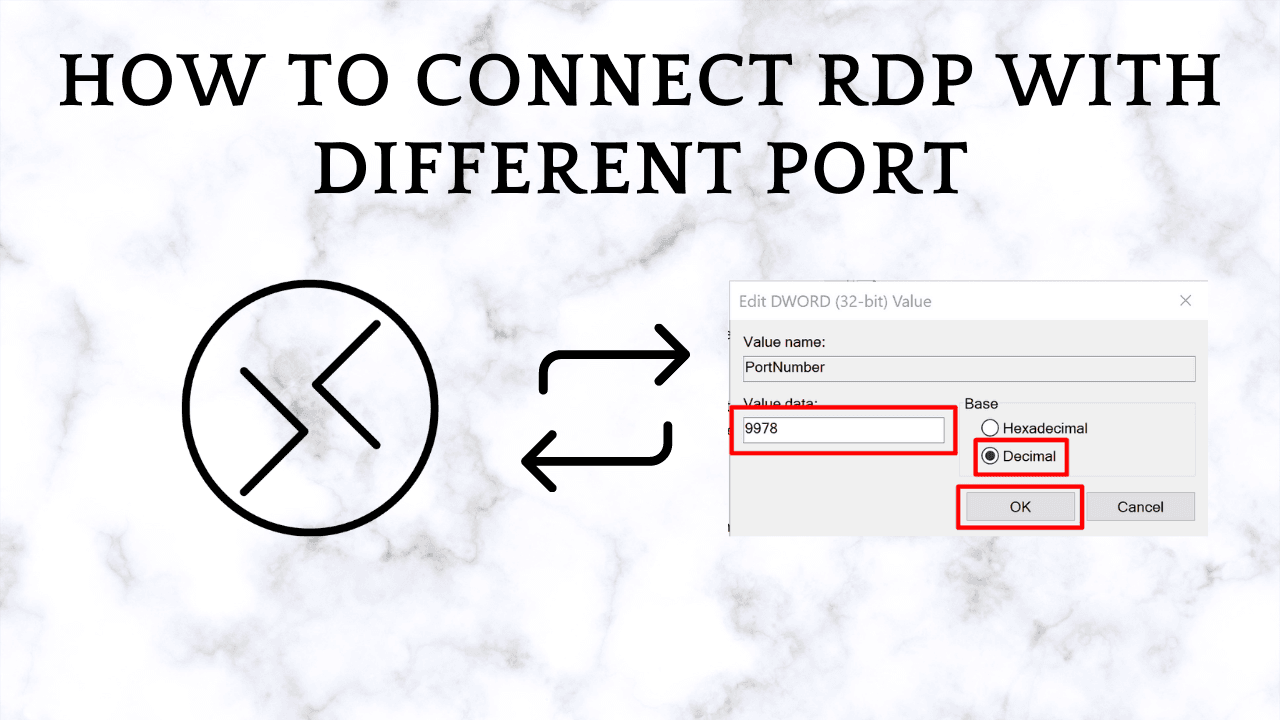
HKEY_LOCAL_MACHINE\System\CurrentControlSet\Control\Terminal Server\WinStations\RDP-TcpDouble-click PortNumber, choose Decimal, and enter the new port, for example 9978.

Or do the same in PowerShell as administrator:
Set-ItemProperty -Path "HKLM:\System\CurrentControlSet\Control\Terminal Server\WinStations\RDP-Tcp" -Name PortNumber -Value 99782. Allow the new port in the firewall:
New-NetFirewallRule -DisplayName "RDP 9978 TCP" -Direction Inbound -Protocol TCP -LocalPort 9978 -Action Allow
New-NetFirewallRule -DisplayName "RDP 9978 UDP" -Direction Inbound -Protocol UDP -LocalPort 9978 -Action Allow
3. Restart the Remote Desktop service (your session drops), or restart the server:
Restart-Service TermService -Force4. Test by connecting to address:9978. From another PC you can check the port first:
Test-NetConnection 203.0.113.10 -Port 9978Choosing a port
- Use a number between 1024 and 65535 that nothing else on the server uses.
- Avoid well-known ones such as 8080, 3306 or 5900.
- Write it down. A forgotten port is a common reason for "my RDP stopped working".
If you are locked out
Use the provider's console or control panel to reach the server without Remote Desktop, and check the firewall rule and the registry value. If a provider firewall sits in front of the server, the new port must be allowed there too. At home behind a router, the port forwarding must point at the new port: see port forwarding on MikroTik.
Does a different port make RDP safer?
A little quieter, not safer. Bots that try passwords on 3389 will mostly miss it, which keeps the logs clean. Anyone who scans all ports finds it in minutes. Real protection is a long password, an account that is not called Administrator, Network Level Authentication, and a firewall rule that allows only your own addresses.
On our plans
Shared RDP plans come with a port that we assign; use the address and port from your service details exactly as given. On Admin RDP and VPS plans you are the administrator and can change the port as shown. Related: enable a port through PowerShell, how open ports work and clear the RDP connection history.
Questions
How do I connect to RDP with a port number?
Type the address, a colon and the port in the Computer field, for example 203.0.113.10:9978.
What is the default RDP port?
TCP 3389.
How do I change the RDP port on Windows Server?
Change PortNumber under the RDP-Tcp registry key, allow the new port in the firewall, and restart the Remote Desktop service.
Is changing the RDP port enough to secure a server?
No. It reduces automated login attempts, but a strong password and a firewall rule for your own addresses are what protect it.