How to Connect to RDP from a Windows, Mac, Linux, Android or iPhone Device
Connect to a remote Windows desktop with the address, user name and password you were given, from a Windows PC, a Mac, Linux, Android or an iPhone.
3 min readBy Smita
Reviewed by the AmazingRDP technical team

Need a remote desktop to connect to? The Cheap RDP plans are ready in 10 to 15 minutes. See Cheap RDP from $4.99
To use a remote desktop you need three things, all in the email you received when your service was set up and in the client area:
- the address of the server: an IP address, sometimes followed by a colon and a port, such as
203.0.113.10:4489; - the user name;
- the password.
The program that connects is on your device already, or is a free download. Here is each platform.
From a Windows PC
- Press
Win + R, typemstscand press Enter. The Remote Desktop Connection window opens. - In Computer, type the address, with the port if you were given one.
- Click Connect.
- Enter the user name and password. If Windows offers your own account's name, choose More choices, Use a different account.
- A warning that the identity of the remote computer cannot be verified is normal for a new server. Tick Don't ask me again and click Yes.
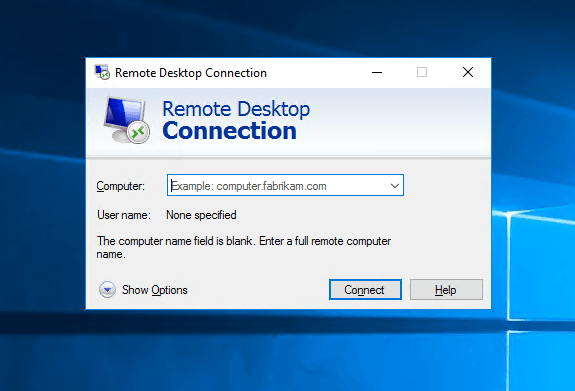
The desktop of the server appears. To leave full screen, move the mouse to the top edge and use the blue bar.
Useful before you connect
Click Show Options:
- General: save the settings as a file, to connect with a double-click next time.
- Display: screen size and whether to use all your monitors.
- Local Resources: clipboard, sound, printers and, under More, your drives for copying files.
From a Mac
- Install Microsoft's free Windows App from the Mac App Store (it replaced "Microsoft Remote Desktop").
- Click +, Add PC.
- Enter the address under PC name, add the user account, and save.
- Double-click the new entry and accept the certificate prompt.
From Linux
Use Remmina, which most desktop distributions include: choose RDP, type the address, press Enter and log in. The details, and the command-line client, are in connecting to RDP from Linux.
From Android or an iPhone
- Install Microsoft's Windows App (iPhone and iPad) or the Remote Desktop app offered for Android in the store.
- Tap +, Add PC, and enter address and account.
- Tap the entry to connect. A toolbar at the top switches between touch and mouse pointer mode and opens the keyboard.
A phone is fine for checking on something. For real work, use a tablet with a keyboard, or see Android and Windows Server for the other direction.
From a Chromebook
Use the Android app above, or Microsoft's web client where your provider offers one. See also streaming from a Chromebook.
After the first login
- Change the password: press
Ctrl + Alt + Endand choose Change a password. - Disconnect or sign out? Closing the window disconnects: your programs keep running. Sign out from the Start menu ends them.
- Read ten habits that keep RDP safe.
If it does not connect
| Message | Check |
|---|---|
| "Remote Desktop can't connect to the remote computer" | The address and port, typed exactly; your own internet connection; whether the service is active in the client area |
| "The credentials did not work" | User name and password, copied without a space at the end. Try typing the name as .\name |
| "An internal error has occurred" | Fixing the internal error |
| Connects, then a black screen | Wait half a minute; then disconnect and reconnect with a smaller screen size |
| Works on mobile data, not on office Wi-Fi | The office network blocks the port. Ask its administrator |
The meaning of the port after the colon is explained in connecting on a different port, and what travels through the connection in RDP features. If you manage many servers, RDCMan keeps them in one window. Still stuck? Open a ticket with the exact message.
Questions
How do I connect to an RDP server?
On Windows press Win + R, type mstsc, enter the server address, click Connect and log in with the user name and password you were given.
What do I need to connect to RDP?
The server address (with the port, if one is given), a user name and a password.
Can I use RDP from a Mac or a phone?
Yes. Install Microsoft's free Windows App or Remote Desktop app, add the PC and connect.
Does closing the RDP window stop my programs?
No. Closing the window only disconnects. Sign out from the Start menu to end the session.