Windows Server Update Services (WSUS): A Complete Guide
What WSUS does, how to install and configure it, point computers at it with Group Policy, keep it healthy, and what Microsoft's end of development means for you.
3 min readBy Swati
Reviewed by the AmazingRDP technical team
Need a Windows server for a management role? A Windows VPS gives you Windows Server with full admin access. See Windows VPS from $8.99
Windows Server Update Services (WSUS) is a free role of Windows Server that sits between Microsoft's update servers and your computers. It downloads updates once, lets you decide which of them your machines get and when, and reports which machines are missing what. It suits a network of a few dozen to a few thousand Windows computers that are managed together.
First: where WSUS stands today
In 2024 Microsoft announced that WSUS is no longer being developed. It is not being removed: it is included in Windows Server 2025, keeps working, and keeps receiving the updates it distributes. There will be no new features, and Microsoft points to its cloud services (Intune with Windows Autopatch, Azure Update Manager) for the future. For an existing network, or one without those cloud subscriptions, WSUS remains a sound choice. For a new long-term design, weigh the cloud route first.
What you need
- A Windows Server (2016 or later) joined to the same domain as the computers, or reachable by them.
- Disk space: 40 GB at the very least for the update files, and realistically 100 GB or more, on a drive other than C.
- 4 GB of memory or more.
1. Install the role
In Server Manager, click Add roles and features and tick Windows Server Update Services.
Keep the default role services (WID Connectivity and WSUS Services) and enter the folder for the update files, for example D:\WSUS. In PowerShell the same is:
Install-WindowsFeature UpdateServices -IncludeManagementTools
& "C:\Program Files\Update Services\Tools\wsusutil.exe" postinstall CONTENT_DIR=D:\WSUS
2. Run the configuration wizard
Open Windows Server Update Services from the Tools menu. The wizard asks:
- Where updates come from: Microsoft Update (or another WSUS server in a large network).
- Languages: only the ones your computers use. Each extra language costs disk space.
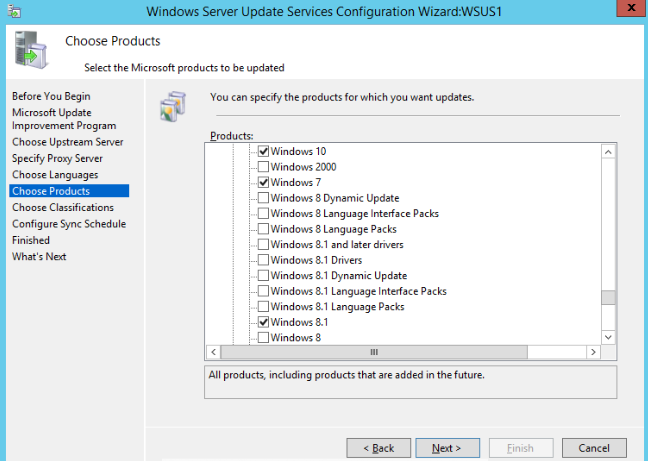
- Products: tick only what you run, for example Windows 11 and Windows Server 2022. Ticking everything fills the disk.
- Classifications: Critical Updates, Security Updates and Definition Updates to start with.
- Synchronisation schedule: once a day is enough.
The first synchronisation takes a long time.
3. Sort computers into groups
Under Computers, create at least two groups, for example "Test" and "Production". Updates you approve go to Test first; when nothing breaks for a week, approve them for Production.
4. Point the computers at WSUS with Group Policy
In the Group Policy Management Console, edit a policy that applies to the computers and go to Computer Configuration, Policies, Administrative Templates, Windows Components, Windows Update.
| Setting | Value |
|---|---|
| Specify intranet Microsoft update service location | Enabled; both address fields: http://wsus-server:8530 |
| Configure Automatic Updates | Enabled; choose how updates install, for example download and schedule |
| Enable client-side targeting | Enabled; the name of the WSUS group, if you want the policy to place computers in groups |
Port 8530 is WSUS's default for HTTP; 8531 is used with HTTPS, which is the better choice outside a closed network. On a computer, apply and check:
gpupdate /force
usoclient StartScan
The computer appears in the WSUS console after its first contact, which can take a while.
5. Approve updates
Under Updates, filter for unapproved updates that computers need, select them, choose Approve and pick the group. Automatic approval rules can do this for definition updates and for the Test group.
6. Keep it healthy
A WSUS server that is never cleaned grows slow and fills its disk. Once a month:
- Run Options, Server Cleanup Wizard with all boxes ticked.
- Decline superseded updates: ones that a newer update has replaced.
- Check free space on the content drive.
Common problems
- Computers do not appear. The policy is not applied (run
gpresult /r), the address is wrong, or a firewall blocks port 8530. See enable a port through PowerShell. - The console crashes or times out. Overdue clean-up; also raise the memory limit of the "WsusPool" application pool in IIS Manager.
- Optional features will not install on a computer (.NET Framework 3.5, for example), with a download error. Computers pointed at WSUS look for those files there. See installing .NET Framework 3.5 without errors for the policy that fixes it.
Do you need WSUS?
For one or a handful of servers, no: Windows Update with sensible active hours is enough. WSUS earns its keep when many machines must get the same tested updates, or must not each download them over a thin line. A Windows VPS can hold the role if your computers can reach it over a VPN. Related: fix .NET Framework error 0x80070422.
Questions
What is WSUS used for?
To download Windows updates once, approve them centrally, and distribute them to the computers in a network.
Is WSUS being discontinued?
Microsoft stopped developing new features in 2024. WSUS remains part of Windows Server 2025 and keeps working.
Which port does WSUS use?
8530 for HTTP and 8531 for HTTPS by default.
Is WSUS free?
Yes. It is a role included in Windows Server.