How to Fix .NET Framework Installation Error 0x80070422 on Windows Server 2022
Error 0x80070422 means the Windows Update service is disabled. Switch it on in Services or with two PowerShell lines, then install .NET Framework again.
2 min readBy Swati
Reviewed by the AmazingRDP technical team

Need a Windows server where you can install what your application needs? A Windows VPS gives you full admin access. See Windows VPS from $8.99
You add .NET Framework 3.5 on Windows Server 2022, or run an installer that needs it, and it stops with error 0x80070422. The code means "the service cannot be started". The service in question is Windows Update: the server downloads the .NET files through it, and on many servers it has been disabled to stop automatic updates. Switch it back on and the installation goes through.
1. Open Services
Press Win + R.
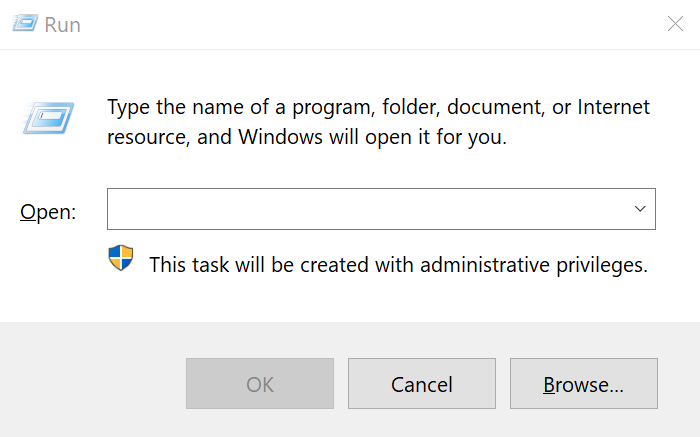
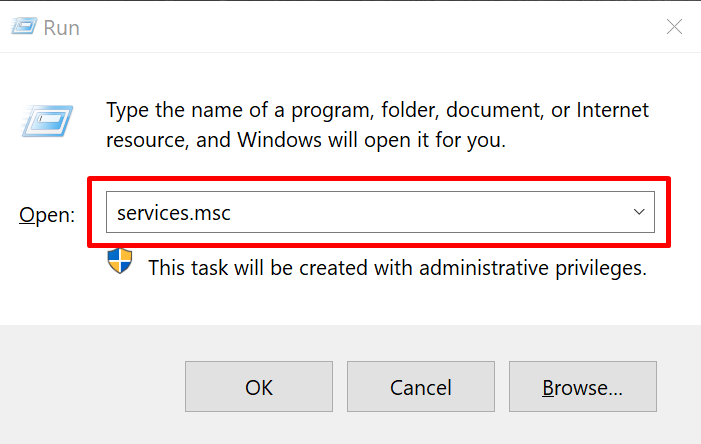
Type services.msc and press Enter.
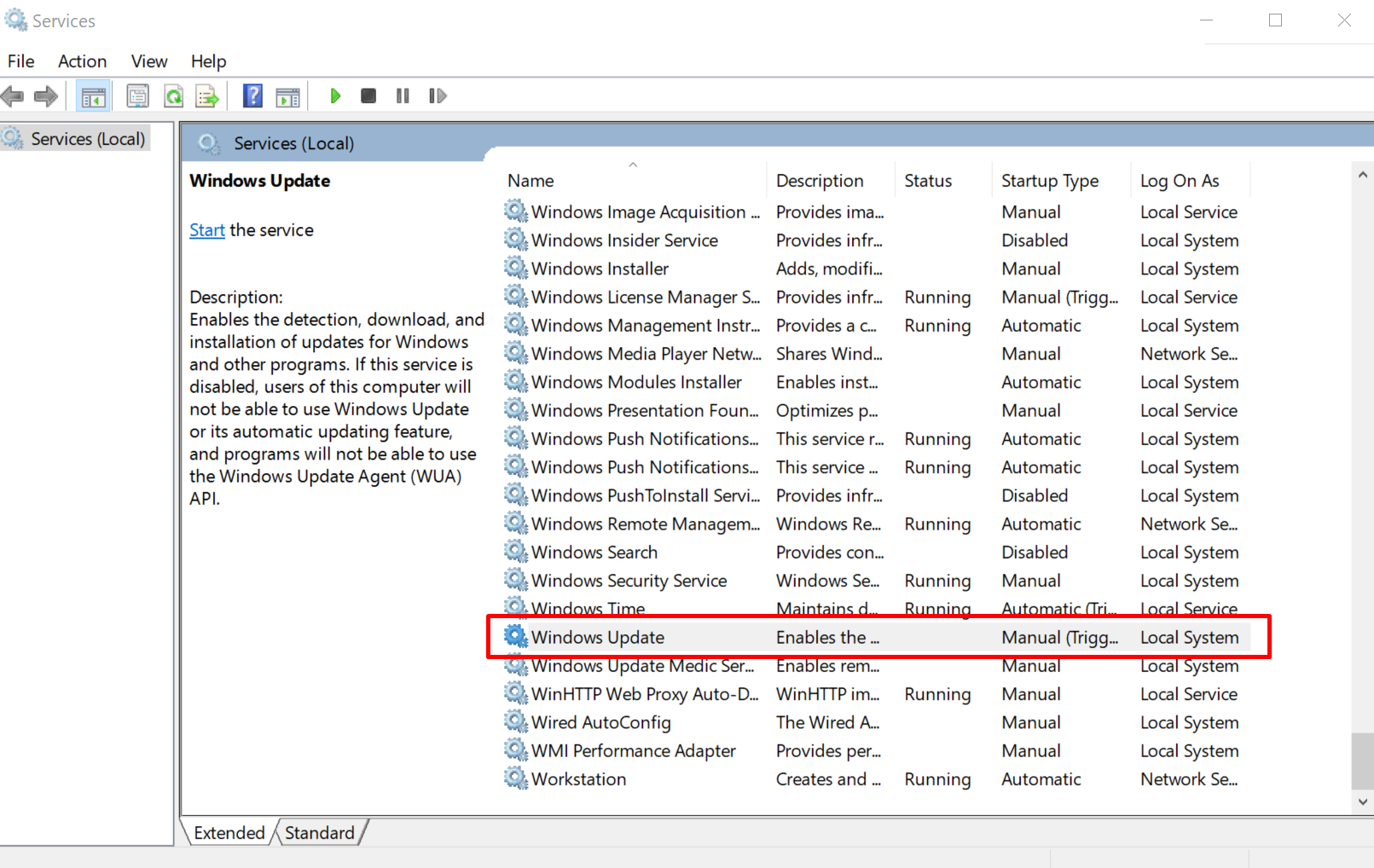
2. Find Windows Update
Scroll down the list to Windows Update. With this error, its status is empty and its startup type is Disabled.
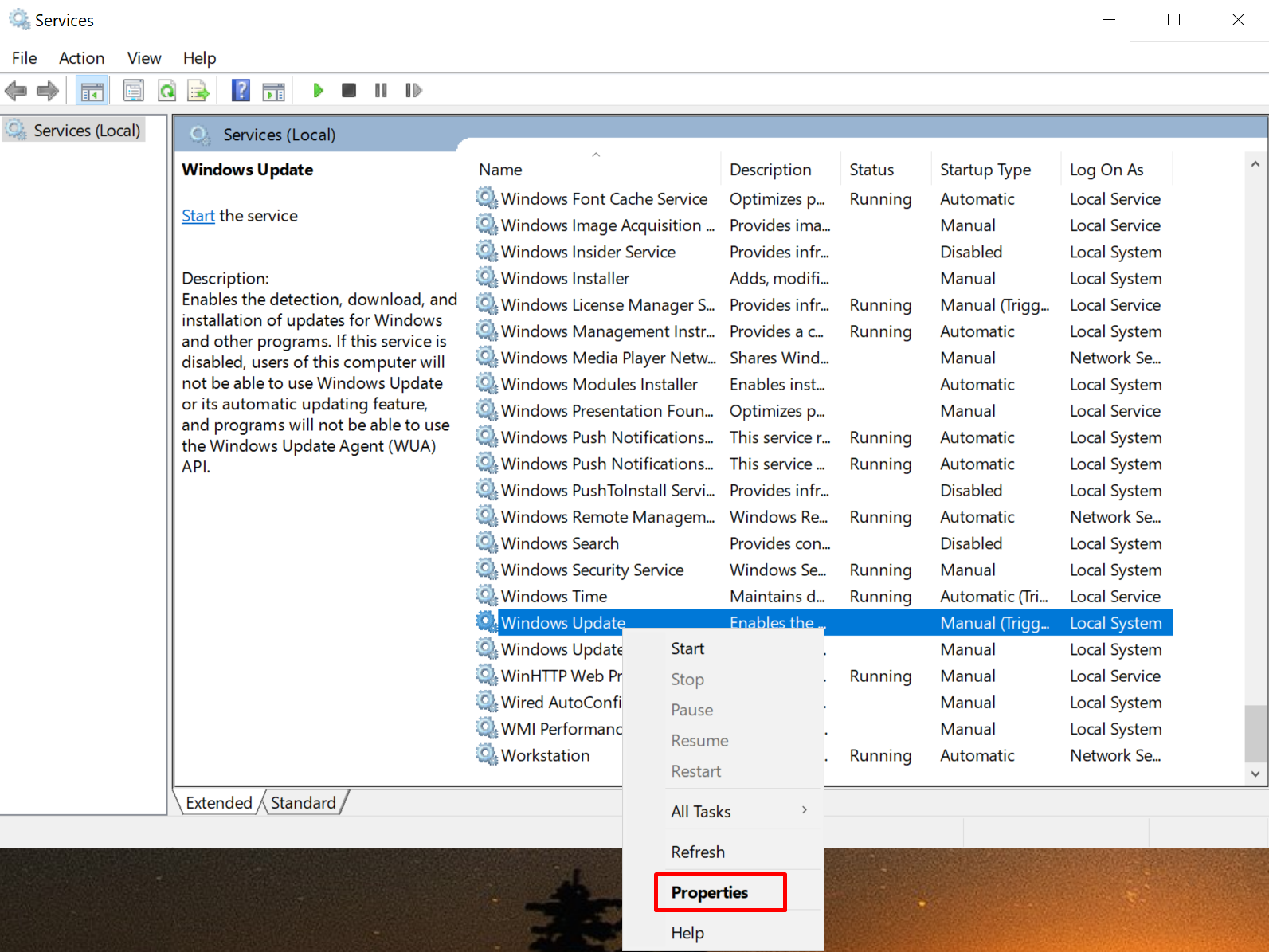
3. Open its properties
Right-click Windows Update and choose Properties.
4. Set the startup type
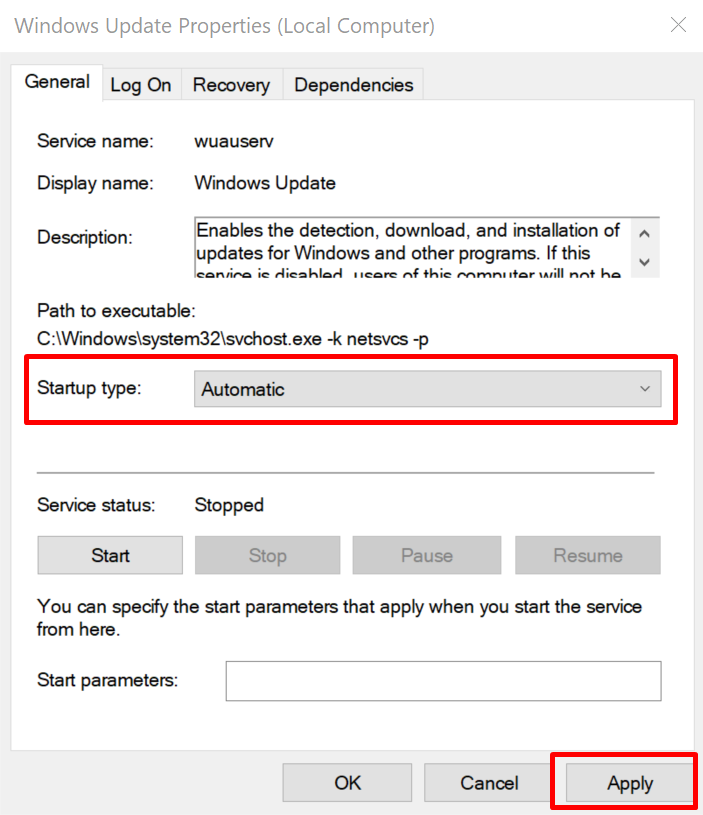
On the General tab, set Startup type to Manual or Automatic and click Apply. Manual is the Windows default: the service starts when something needs it.
5. Start the service
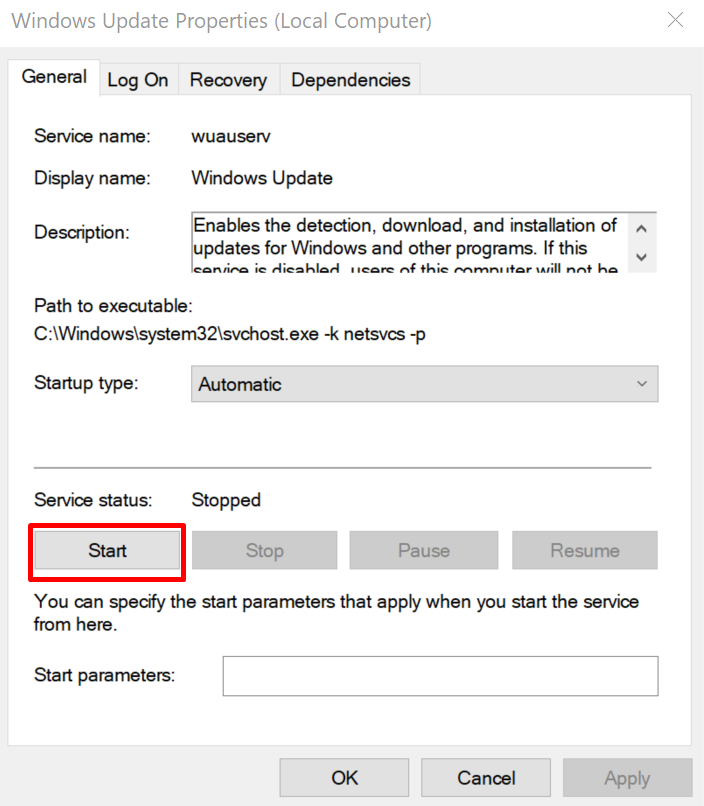
Click Start, wait until the status shows Running, and click OK.
6. Install .NET Framework again
Repeat the installation. In Server Manager that is Add roles and features, Features, .NET Framework 3.5 Features. No restart is needed first.
The same in PowerShell
As administrator:
Set-Service -Name wuauserv -StartupType Manual
Start-Service -Name wuauserv
Install-WindowsFeature NET-Framework-Core
The first two lines switch the service on; the third installs .NET Framework 3.5.
If the service will not stay on
- A policy disables it. If the startup type is greyed out or jumps back to Disabled, a group policy or a "stop updates" tool is setting it. Check
gpedit.mscunder Computer Configuration, Administrative Templates, Windows Components, Windows Update, and remove such tools. - A service it depends on is off. Windows Update needs Background Intelligent Transfer Service and Cryptographic Services. Neither may be Disabled.
If you get a different error afterwards
Errors 0x800F0906, 0x800F081F or 0x800F0954 mean the server could not download the .NET files, often because it is pointed at an internal update server (WSUS) or has no internet access. Install from the Windows Server installation media instead. Mount the ISO, note its drive letter, and run:
DISM /Online /Enable-Feature /FeatureName:NetFx3 /All /LimitAccess /Source:D:\sources\sxsAfterwards
If you had disabled Windows Update on purpose, you can set it back once .NET is installed. A better way to control updates on a server is to leave the service alone and set the update policy to "notify" or to a fixed maintenance time, so that security fixes still arrive.
All of this needs administrator rights, which you have on an admin RDP or a Windows VPS. More Windows Server 2022 guides: fix the search index, enable thumbnail previews and enable the microphone.
Questions
What does error 0x80070422 mean?
A required service cannot start because it is disabled. For .NET Framework installation, that service is Windows Update.
How do I fix 0x80070422 on Windows Server 2022?
Set the Windows Update service to Manual or Automatic in services.msc, start it, and run the installation again.
Do I have to leave Windows Update enabled afterwards?
No, but it is safer to keep the service and control updates by policy, so that security fixes still install.
Why do I now get error 0x800F081F?
The server could not download the files. Install .NET Framework 3.5 from the installation media with the DISM command and its /Source option.