Installing .NET Framework 3.5 on Windows Server Without Errors
Install .NET Framework 3.5 on Windows Server with Server Manager, PowerShell or DISM, and fix errors 0x800F0906, 0x800F081F and 0x800F0922.
2 min readBy Shailabh
Reviewed by the AmazingRDP technical team
Need a Windows server where you can install what your software requires? A Windows VPS gives you full admin access. See Windows VPS from $8.99
Many older programs still need .NET Framework 3.5, which also covers versions 2.0 and 3.0. Windows Server lists it as a feature, but its files are not on the disk: the server fetches them from Windows Update when you install it. When that download is blocked, the installation ends with an error code. Here is the normal way, and the way that always works.
The normal way: Server Manager
- Open Server Manager and click Add roles and features.

- Click Next until you reach Features. Tick .NET Framework 3.5 Features.
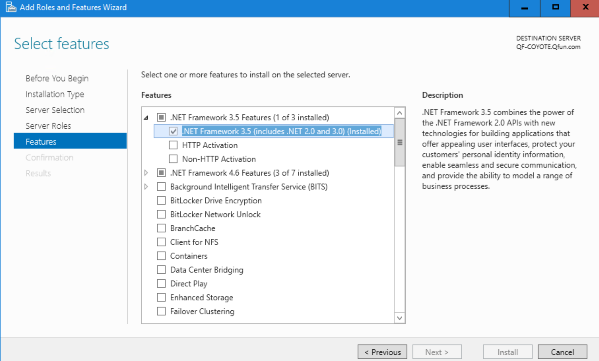
- Click Next, then Install.
With internet access and a working Windows Update service, that is all. In PowerShell the same is one line:
Install-WindowsFeature NET-Framework-CoreIf it fails: the error codes
| Code | Meaning |
|---|---|
0x800F0906 | The files could not be downloaded: no internet, or the server is pointed at an internal update server that does not carry them |
0x800F081F | The source files were not found: the path you gave is wrong, or the media is from another Windows version |
0x800F0907 | A policy forbids fetching the files from Windows Update |
0x800F0922 | The installation itself failed, often after an in-place upgrade or with pending updates |
0x80070422 | The Windows Update service is disabled: see how to fix error 0x80070422 |
The way that always works: install from the Windows media
The files are on the Windows Server installation disc, in the folder sources\sxs. The disc must be the same version as the installed system (Server 2019 media for Server 2019, and so on).
- Get the ISO. Use your own installation media, download the evaluation ISO from Microsoft's Evaluation Center, or ask your server provider to attach it.
- Mount it: right-click the ISO file and choose Mount. Note the drive letter, for example
D:. - In PowerShell as administrator, run one of these:
Install-WindowsFeature NET-Framework-Core -Source D:\sources\sxs
DISM /Online /Enable-Feature /FeatureName:NetFx3 /All /LimitAccess /Source:D:\sources\sxs
/LimitAccess tells Windows not to try Windows Update at all.
In the Server Manager wizard, the same is done on the confirmation page: click Specify an alternate source path.
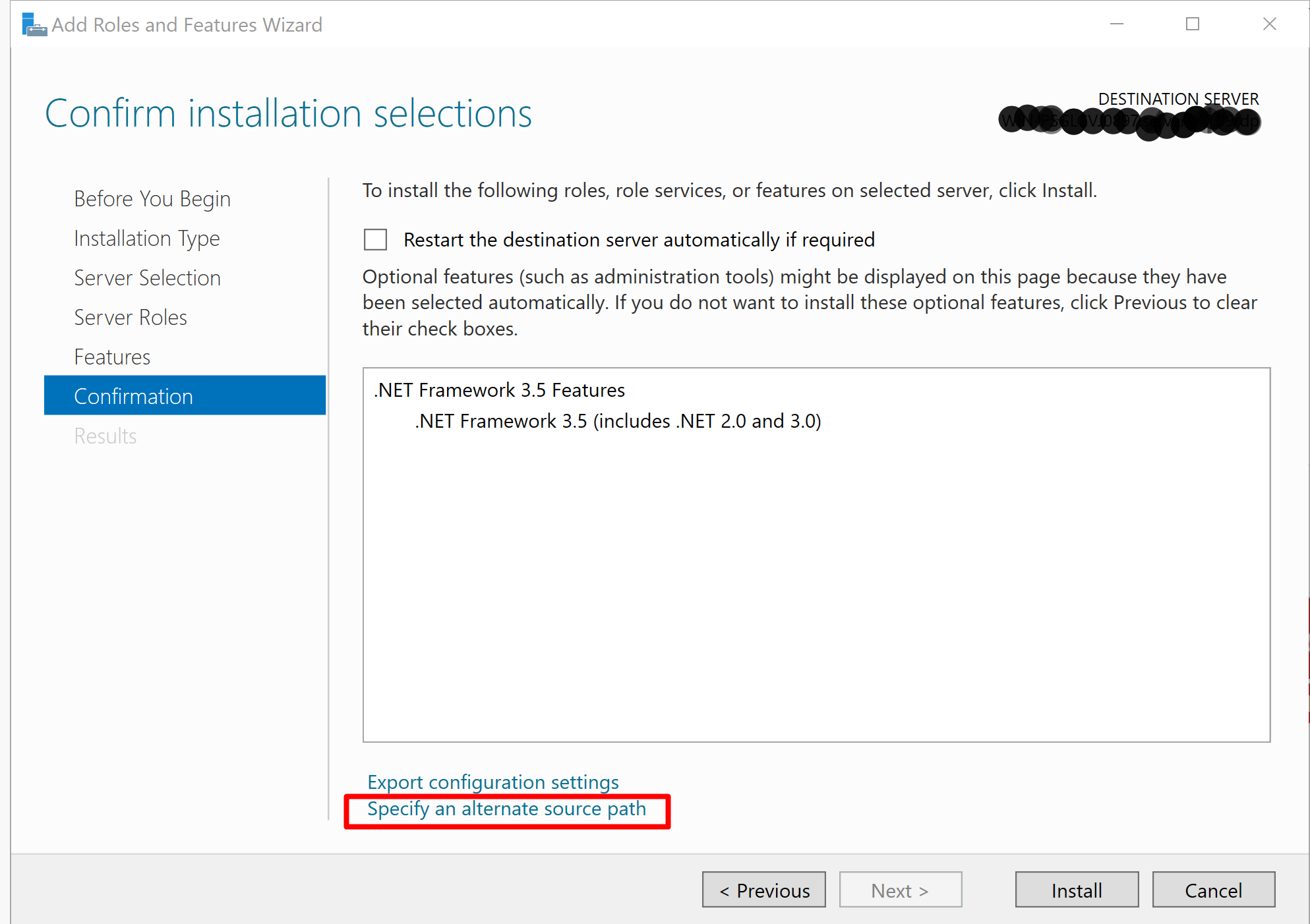
Enter the path, for example D:\sources\sxs, and click OK, then Install.

Or allow the download from Windows Update
If the server is managed with an internal update server (WSUS), let it fetch optional features from Microsoft directly. In gpedit.msc, go to Computer Configuration, Administrative Templates, System, and open Specify settings for optional component installation and component repair. Set it to Enabled and tick Download repair content and optional features directly from Windows Update. Run gpupdate /force and try again.
For error 0x800F0922
- Install pending Windows updates and restart, then repeat.
- Repair the component store, then repeat:
DISM /Online /Cleanup-Image /RestoreHealth
sfc /scannow
Check that it is installed
Get-WindowsFeature NET-Framework-Core"Installed" in the output means it is there. Then run Windows Update once more: .NET 3.5 receives its own security updates.
A warning from the earlier version of this page: do not download Windows installation media "from anywhere on the internet". Use Microsoft's site or your provider. On an admin RDP or a Windows VPS you have the rights for every step. Related: find the exact Windows version.
Questions
How do I install .NET Framework 3.5 on Windows Server?
In Server Manager, add the feature ".NET Framework 3.5 Features", or run Install-WindowsFeature NET-Framework-Core in PowerShell.
How do I fix error 0x800F0906 or 0x800F081F?
Install from the Windows installation media with DISM /Online /Enable-Feature /FeatureName:NetFx3 /All /LimitAccess /Source:D:\sources\sxs.
Where are the .NET 3.5 files on the Windows media?
In the folder sources\sxs.
Does .NET Framework 3.5 include 2.0?
Yes. It includes versions 2.0 and 3.0.