How to Enable Hyper-V on Windows 11 and Windows Server 2022
Switch on Hyper-V on Windows 11 or Windows Server 2022 with one PowerShell line or the menus, check the requirements, and create a first virtual machine.
3 min readBy Soumya
Reviewed by the AmazingRDP technical team
Running your own virtual machines needs a machine of your own. See our dedicated servers. See Cheap Dedicated Servers from $38.99
Hyper-V is the virtualisation system built into Windows. With it, one computer runs several separate virtual machines, each with its own operating system. It is not installed by default; you switch it on as a Windows feature and restart.
Requirements
- Windows 11 Pro, Enterprise or Education, or any edition of Windows Server. Windows 11 Home does not include Hyper-V.
- A 64-bit processor with virtualisation support (Intel VT-x or AMD-V, with SLAT), switched on in the BIOS or UEFI.
- 4 GB of memory at the very least; in practice 16 GB or more, since every virtual machine needs its share.
To check the processor part, run systeminfo in a terminal and look at the last lines, "Hyper-V Requirements". Four times "Yes" means ready. If it says a hypervisor has been detected, Hyper-V or another one is already active.
Windows 11
With PowerShell
Open PowerShell as administrator:
Enable-WindowsOptionalFeature -Online -FeatureName Microsoft-Hyper-V -AllAnswer Y to restart.
Through the menus
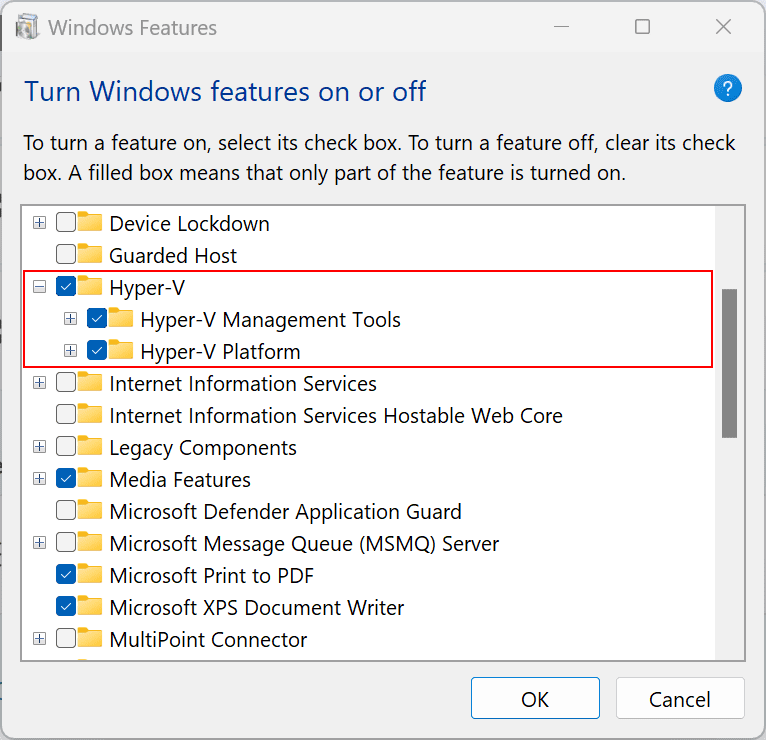
- Press the Windows key, type Turn Windows features on or off, and open it.
- Tick Hyper-V, so that both Hyper-V Management Tools and Hyper-V Platform are ticked.
- Click OK and restart when asked.
Windows Server 2022
With PowerShell
Install-WindowsFeature -Name Hyper-V -IncludeManagementTools -RestartWith Server Manager
- Open Server Manager and click Add roles and features.
- Click Next until Server Roles, tick Hyper-V, and accept the management tools.
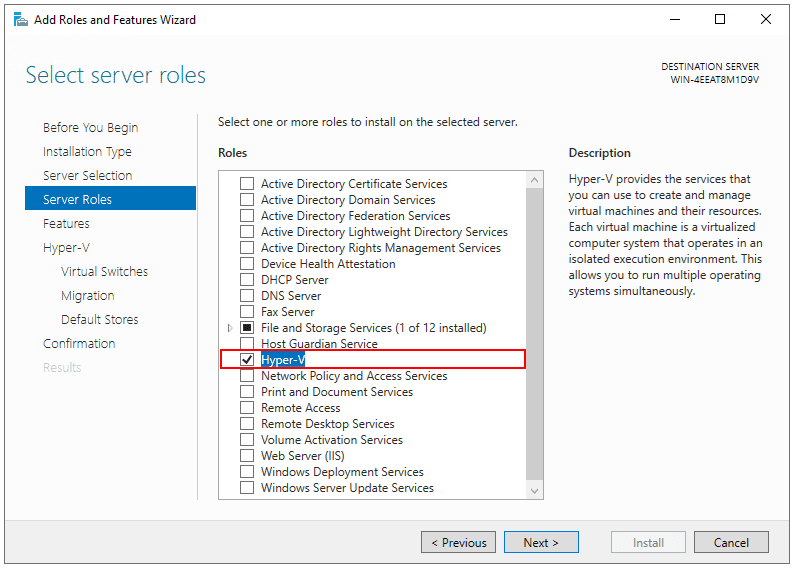
- On Virtual Switches, tick the network adapter that virtual machines should use to reach the network. On a remote server with one adapter, leave it unticked and create the switch afterwards with care, because changing the adapter interrupts your own connection.
- Keep the defaults for migration and storage, click Install, and restart.
The steps are the same on Windows Server 2019 and 2025.
A first virtual machine
- Open Hyper-V Manager from the Start menu.
- If no switch exists, open Virtual Switch Manager and create an External switch on your network adapter. On Windows 11 a "Default Switch" already gives virtual machines internet access.
- Choose New, Virtual Machine. Give it a name, choose Generation 2 for current systems, assign memory, pick the switch, and create a virtual disk.
- Point it at an installation image (an
.isofile) and start it.
On Windows 11, Quick Create does all of this for a few ready-made systems.
On a rented server
- On a VPS you are already inside a virtual machine. Hyper-V works there only if the provider passes virtualisation through to the guest ("nested virtualisation"), which most plans do not. Ask before you order for this purpose.
- On a dedicated server the processor's virtualisation features are yours, and Hyper-V installs as on any PC. See our dedicated servers.
- Licences: Windows Server Standard covers two Windows virtual machines on the licensed host, Datacenter any number. Evaluation editions have a time limit.
Problems
| Message | Cause |
|---|---|
| Hyper-V is missing from the feature list | Windows 11 Home |
| "Hyper-V cannot be installed: the processor does not have required virtualization capabilities" | Virtualisation is off in the BIOS, or you are on a VPS without nested virtualisation |
| Virtual machines do not start: "hypervisor is not running" | Run bcdedit /set hypervisorlaunchtype auto as administrator and restart |
| VirtualBox or VMware became slow | They now run on top of Hyper-V. Use one hypervisor at a time |
| Lost the remote connection while creating a switch | The external switch took over the network adapter; reconnect after a minute, or use the provider's console |
Switch it off again
Disable-WindowsOptionalFeature -Online -FeatureName Microsoft-Hyper-V-All
Uninstall-WindowsFeature -Name Hyper-V -Restart
The first line is for Windows 11, the second for Windows Server.
More: how hypervisors work, a virtual lab with VirtualBox or Hyper-V, eight virtualisation management challenges, and the lighter alternative for trying one program safely, Windows Sandbox.
Questions
How do I enable Hyper-V on Windows 11?
Run Enable-WindowsOptionalFeature -Online -FeatureName Microsoft-Hyper-V -All in PowerShell as administrator, or tick Hyper-V under "Turn Windows features on or off", then restart.
Does Windows 11 Home have Hyper-V?
No. Hyper-V is part of the Pro, Enterprise and Education editions.
How do I install Hyper-V on Windows Server 2022?
Run Install-WindowsFeature -Name Hyper-V -IncludeManagementTools -Restart, or add the Hyper-V role in Server Manager.
Can I run Hyper-V on a VPS?
Only if the provider offers nested virtualisation. A dedicated server is the reliable choice.