How to Install Windows Sandbox on Windows 10 and 11
Windows Sandbox is a throwaway Windows desktop for trying a program safely. Switch it on, use it, and set it up with a small configuration file.
3 min readBy Daniel
Reviewed by the AmazingRDP technical team
Need a separate Windows machine that stays? A Windows VPS gives you full admin access. See Windows VPS from $8.99
Windows Sandbox is a small, temporary copy of Windows that runs in a window. You can install and run anything in it. When you close the window, everything inside is deleted, and the next start is a clean Windows again. It is the simplest way to try a program you do not fully trust without putting your own system at risk.
Requirements
- Windows 10 or 11 in the Pro, Enterprise or Education edition. The Home edition does not include it.
- A 64-bit processor with virtualisation switched on in the BIOS or UEFI.
- At least 4 GB of memory (8 GB is better), 1 GB of free disk space, and two processor cores.
To check virtualisation: open Task Manager, Performance, CPU, and look for "Virtualization: Enabled".
Switch it on
Through the menus
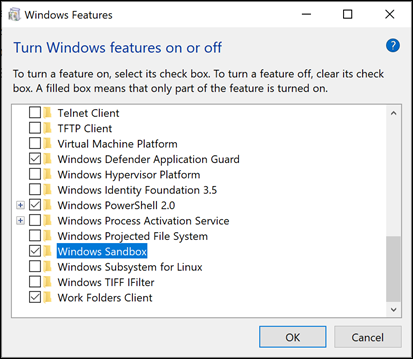
- Press the Windows key, type Turn Windows features on or off, and open it.
- Tick Windows Sandbox and click OK.
- Restart when asked.
With PowerShell
As administrator:
Enable-WindowsOptionalFeature -Online -FeatureName "Containers-DisposableClientVM" -AllUse it
- Open the Start menu and start Windows Sandbox. A window with a fresh Windows desktop appears after a few seconds.
- Copy a file on your PC and paste it into the sandbox window, or download it there with the browser.
- Install and test.
- Close the window. Confirm that everything will be lost.
Nothing is kept between sessions. That is the point, and it means a program that needs a restart to finish installing cannot be tested this way on older versions; current Windows 11 keeps the contents through a restart inside the sandbox, though not after the window is closed.
Set it up with a configuration file
A text file with the ending .wsb starts the sandbox with your settings. Double-click the file to launch it.
<Configuration>
  <Networking>Disable</Networking>
  <MappedFolders>
    <MappedFolder>
      <HostFolder>C:\Users\Public\Downloads</HostFolder>
      <ReadOnly>true</ReadOnly>
    </MappedFolder>
  </MappedFolders>
  <MemoryInMB>4096</MemoryInMB>
</Configuration>| Setting | Does |
|---|---|
Networking | Disable cuts the sandbox off from the network. The safest choice for an unknown program |
MappedFolders | Shows a folder of your PC on the sandbox desktop; ReadOnly keeps the sandbox from changing it |
ClipboardRedirection | Disable stops copy and paste between the two |
LogonCommand | Runs a command at start, for example an installer |
MemoryInMB | Memory for the sandbox |
vGPU | Disable draws without the graphics card; slower and a little more isolated |
How safe is it?
The sandbox is a real virtual machine, separated from your system by the same technology as Hyper-V. A program inside cannot see your files unless you map a folder. Three cautions remain:
- With networking on, a program can reach the internet and your local network.
- A folder mapped without
ReadOnlycan be changed or encrypted. - It is a tool for caution, not a laboratory for known malware.
Sandbox, virtual machine or separate server?
| You want | Use |
|---|---|
| To try one program for ten minutes | Windows Sandbox |
| A second system that keeps its state, or another operating system | A virtual machine: see enabling Hyper-V and a virtual lab |
| A separate Windows that runs all day and is reachable from anywhere | A remote server |
Problems
| Sign | Cause |
|---|---|
| Windows Sandbox is greyed out in the feature list | Virtualisation is off in the BIOS, or the PC is itself a virtual machine without nested virtualisation |
| It is missing from the list | Windows Home edition |
| Error 0x80070002 or "no hypervisor was found" | Run bcdedit /set hypervisorlaunchtype auto as administrator and restart |
| No internet inside | A VPN or security program on the PC blocks the sandbox's virtual network |
Windows Sandbox is a feature of the desktop editions and is not part of Windows Server, so it is not available on a remote server. For a separate Windows machine that stays, see our Windows VPS plans.
Questions
What is Windows Sandbox?
A temporary, isolated Windows desktop in a window. Everything inside is deleted when you close it.
How do I enable Windows Sandbox?
Open "Turn Windows features on or off", tick Windows Sandbox, click OK and restart.
Is Windows Sandbox available on Windows Home?
No. It needs the Pro, Enterprise or Education edition.
Are files saved in Windows Sandbox?
No. Closing the sandbox deletes everything in it. Copy out what you want to keep first.