How to Enable Thumbnail Previews in File Explorer in Windows Server 2022
Windows Server 2022 shows icons where you expect picture previews. Switch thumbnails on in Folder Options, and check three other settings if they stay hidden.
2 min readBy Soumya
Reviewed by the AmazingRDP technical team
Working with pictures and video on a server? A Windows VPS gives you your own Windows Server with full admin access. See Windows VPS from $8.99
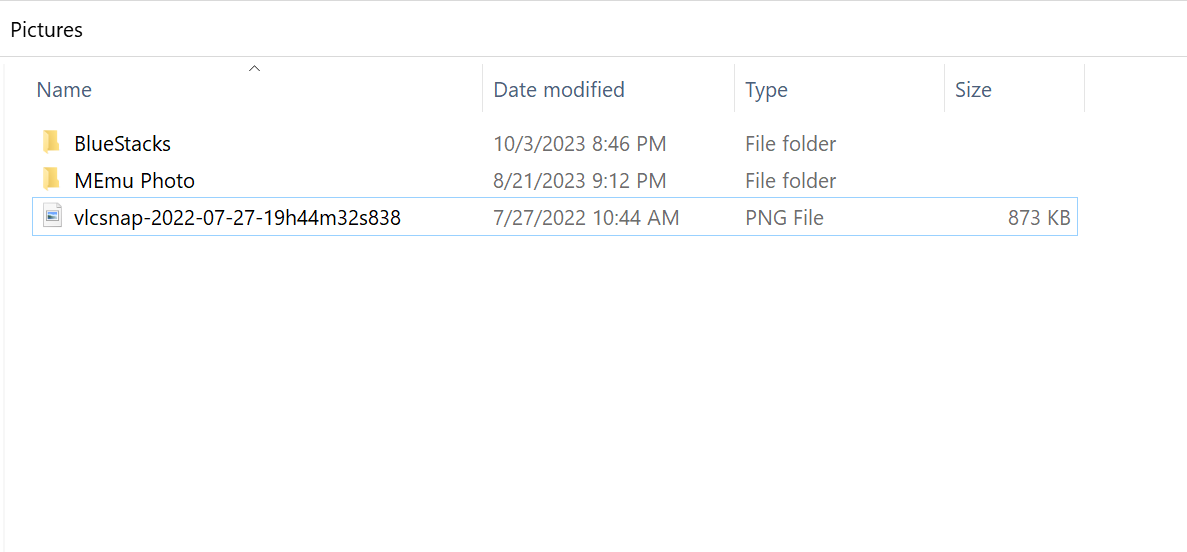
On Windows Server 2022, File Explorer shows a generic icon for every picture and video. Servers ship that way to save resources. If you sort through images or footage on the server, thumbnails save a lot of opening and closing. Switching them on takes a minute.
1. Open File Explorer
Press Win + E, or click the folder icon on the taskbar.
2. Open Folder Options
Click the View tab in the ribbon at the top.
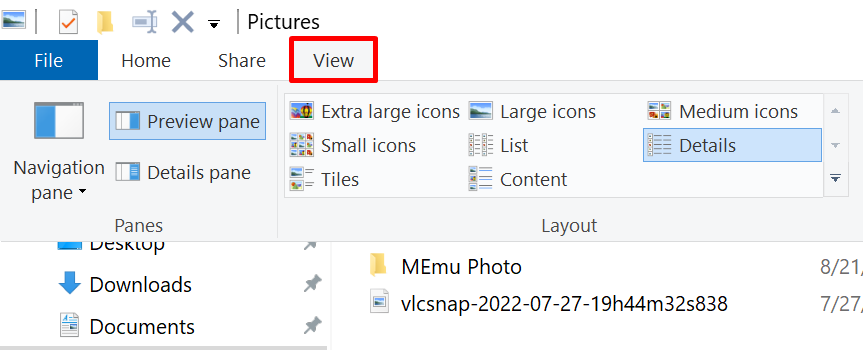
Then click Options at the right end of the ribbon.

3. Switch thumbnails on
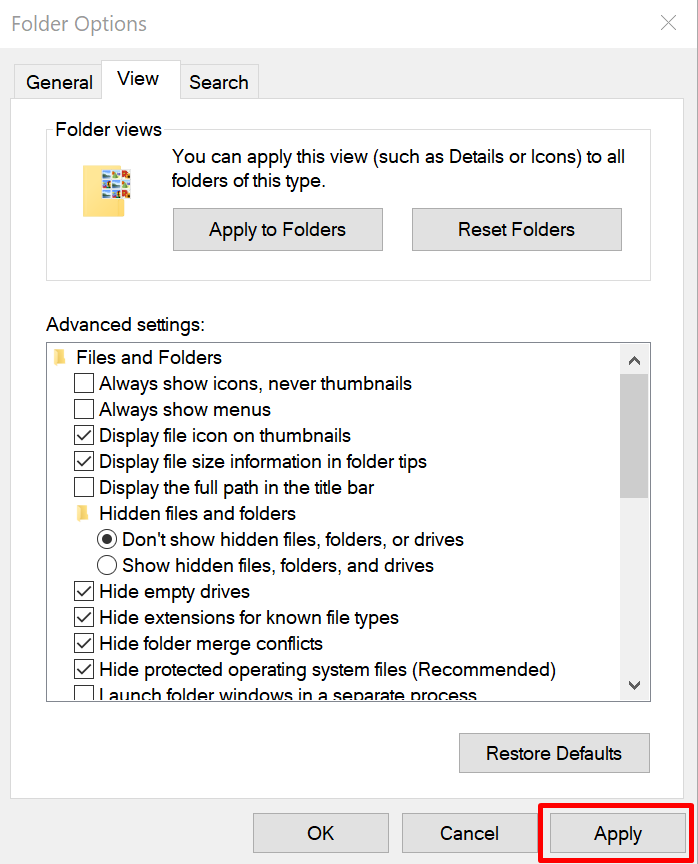
In the Folder Options window, open its View tab.
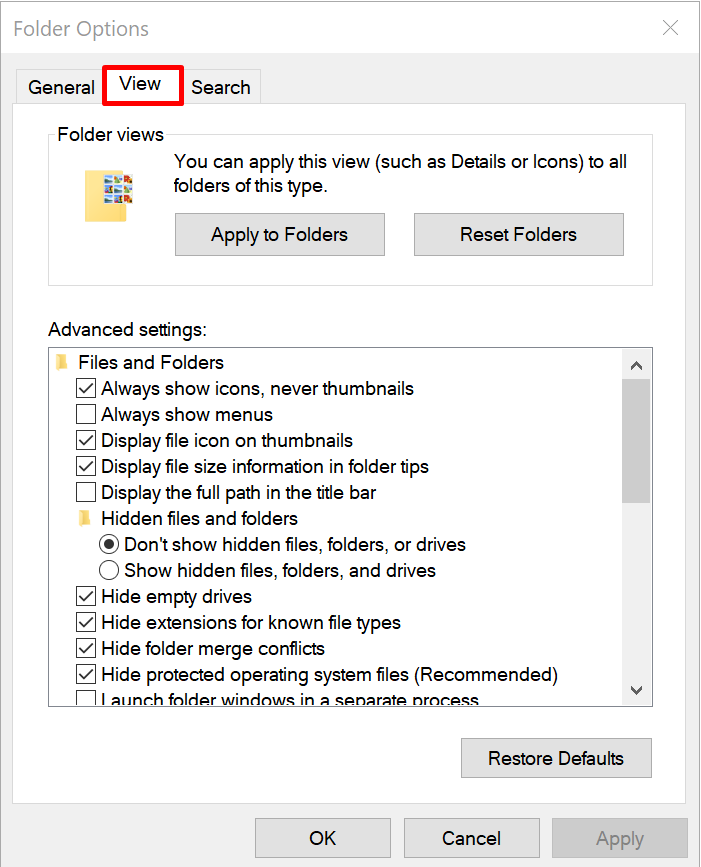
Under Files and Folders, find Always show icons, never thumbnails and remove the tick.
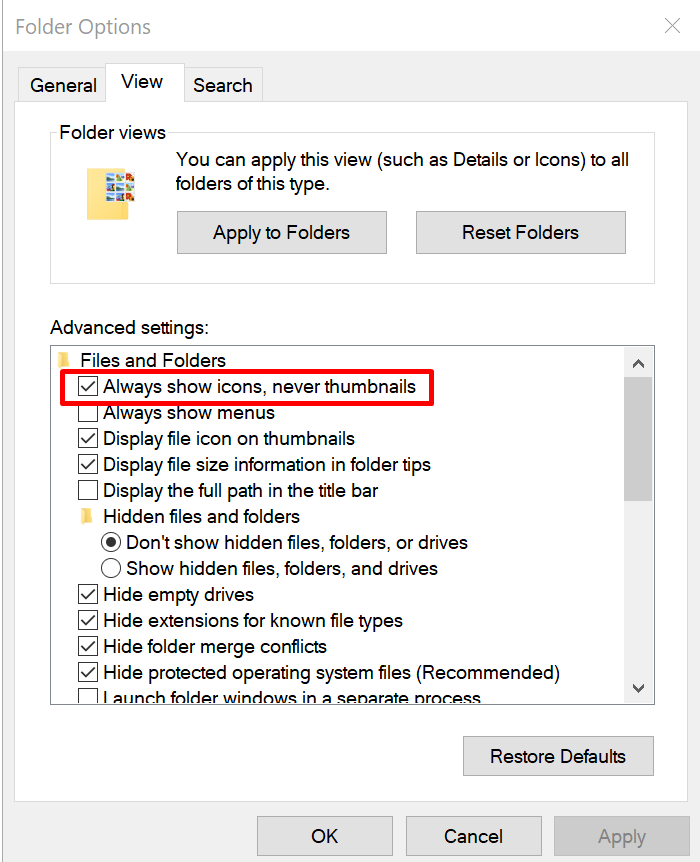
Click Apply, then OK.
4. Look at a folder with pictures
Open a folder that holds images and choose Large icons or Medium icons on the View tab. In the List and Details views there is no room for previews.

If the icons do not change at once, restart Explorer: press Ctrl + Shift + Esc, find Windows Explorer in Task Manager, right-click it and choose Restart.
Still only icons? Three more places to check
Performance options. Press Win + R, type SystemPropertiesPerformance and press Enter. On the Visual Effects tab, tick Show thumbnails instead of icons and click OK. On servers this list is often set to "best performance", which switches thumbnails off.
A policy. Press Win + R, type gpedit.msc, and go to User Configuration, Administrative Templates, Windows Components, File Explorer. The setting Turn off the display of thumbnails and only display icons must be Not Configured or Disabled.
A damaged thumbnail cache. If some previews are blank or wrong, run cleanmgr, tick Thumbnails only, and click OK. Windows builds them again when you open the folder.
What gets a preview
Common picture formats (JPG, PNG, BMP, GIF) work straight away. Video and other formats get a preview only if Windows can read them; a server has fewer codecs than a desktop edition, so some videos keep their icon until the matching codec is installed.
On a shared RDP
Folder Options is a per-user setting, so you can change it on a shared RDP as well. Policies and the cache clean-up need administrator rights, which you have on an admin RDP or a Windows VPS. More Windows Server 2022 guides: fix the search index, enable audio and create a user through CMD.
Questions
Why does Windows Server 2022 not show thumbnails?
Servers are set to show icons only, to save resources. Remove the tick at "Always show icons, never thumbnails" in Folder Options.
I changed the setting but still see icons. Why?
Check "Show thumbnails instead of icons" in the performance options, look for a policy that turns thumbnails off, and use the Large or Medium icons view.
Do thumbnails slow the server down?
Slightly, the first time a folder with many files is opened. After that the previews come from a cache.
Why do some videos have no thumbnail?
Windows can only preview formats it has a codec for, and a server edition has fewer of them installed.