How to Enable Audio in Windows Server 2022
Windows Server 2022 has sound switched off. Start the Windows Audio service, set Remote Desktop to play sound on your computer, and check one policy.
2 min readBy Daniel
Reviewed by the AmazingRDP technical team
Sound needs administrator rights on the server. A Windows VPS gives you full admin access. See Windows VPS from $8.99
On Windows Server 2022 the speaker icon shows a red cross and says "The Audio Service is not running". That is the default: servers leave sound off. Turning it on takes two steps, one on the server and one in your Remote Desktop client. You need administrator rights on the server.
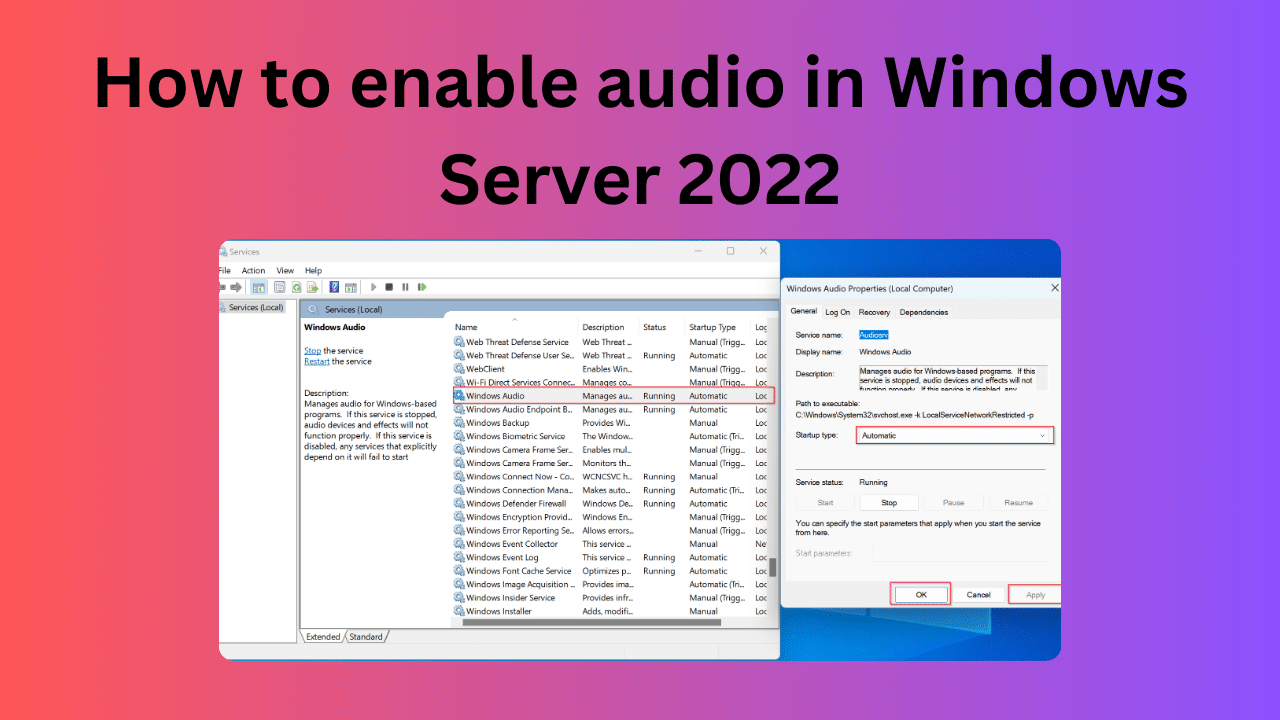
1. Start the Windows Audio service
- Press
Win + R, typeservices.mscand press Enter. - Find Windows Audio and open it with a double-click.
- Set Startup type to Automatic, click Apply, then Start.
Windows starts the Windows Audio Endpoint Builder service together with it. If you prefer PowerShell, run this as administrator:
Set-Service -Name Audiosrv -StartupType Automatic
Start-Service -Name Audiosrv
Because the service is now automatic, sound stays on after a restart.
2. Tell Remote Desktop to play the sound on your computer
A server in a datacentre has no speakers. The sound is sent through the Remote Desktop connection to the computer you are sitting at, and that is set before you connect.
- Open Remote Desktop Connection and click Show Options.
- Open the Local Resources tab.
- Under Remote audio, click Settings.
- Choose Play on this computer and click OK.
- Connect. If you were already connected, sign out and connect again.
In the Windows App on Mac, iPhone and Android the same setting is in the connection's options, under sound or devices and audio.
3. Test it
On the server, right-click the speaker icon and choose Sound settings. The output device is called Remote Audio. Play any sound; you should hear it on your own computer.
"Remote Audio" only exists inside a Remote Desktop session. If you look at the server through a VNC or web console you will see "No audio output device is installed", which is normal for a virtual machine.
Still no sound? Check the policy
An administrator or a template can switch audio redirection off. To check:
- Press
Win + R, typegpedit.mscand press Enter. - Go to Computer Configuration, Administrative Templates, Windows Components, Remote Desktop Services, Remote Desktop Session Host, Device and Resource Redirection.
- Open Allow audio and video playback redirection and set it to Enabled.
- Run
gpupdate /force, sign out and connect again.
Other things to check: the volume mixer on the server, the volume on your own computer, and that the Windows Audio service is still shown as Running.
Using a microphone
For recording, two more settings are needed. In the Remote Desktop client, under Remote audio settings, choose Record from this computer. On the server, in the same policy folder, enable Allow audio recording redirection.
Shared RDP and Server Core
Starting a service needs administrator rights. On a shared RDP you do not have them, so ask support whether sound is available on your plan; on an admin RDP or a Windows VPS you can do every step yourself. Server Core, the edition without a desktop, has no sound settings window, but the two PowerShell commands above work there too.
More Windows Server 2022 guides: fix the search index in Windows Server 2022 and set the time zone with PowerShell.
Questions
Why is there no sound on Windows Server 2022?
The Windows Audio service is set to Manual and is not running by default. Set it to Automatic and start it.
Why does the server say "No audio output device is installed"?
A virtual server has no sound card. The "Remote Audio" device appears only inside a Remote Desktop session.
Do I have to install a feature to get sound?
No. Nothing has to be installed on Windows Server 2022 with Desktop Experience. Starting the Windows Audio service is enough.
Can I get sound on a shared RDP?
You cannot start services on a shared RDP. Ask support, or choose an admin RDP or VPS where you are the administrator.