How to Fix "Unable to Copy and Paste" in a Remote Desktop Session
Copy and paste between your PC and a Remote Desktop session stopped working? Check the client settings, restart rdpclip, then the server policy.
2 min readBy Swati
Reviewed by the AmazingRDP technical team

Changing clipboard policies needs administrator rights. An admin RDP gives you a Windows server where you are the administrator. See Admin RDP from $9.99
Copying text or files between your own computer and a Remote Desktop session depends on three things: a setting in the client on your PC, a small helper program in the session, and a policy on the server. When copy and paste stops, one of the three is the cause. Check them in this order, quickest first.
1. On your PC: allow the clipboard
Open Remote Desktop Connection (press Win + S and type "Remote Desktop"). Click Show Options and open the Local Resources tab. Clipboard must be ticked. That is enough for text.

2. For files: allow drives too
To copy and paste files, click More on the same tab.
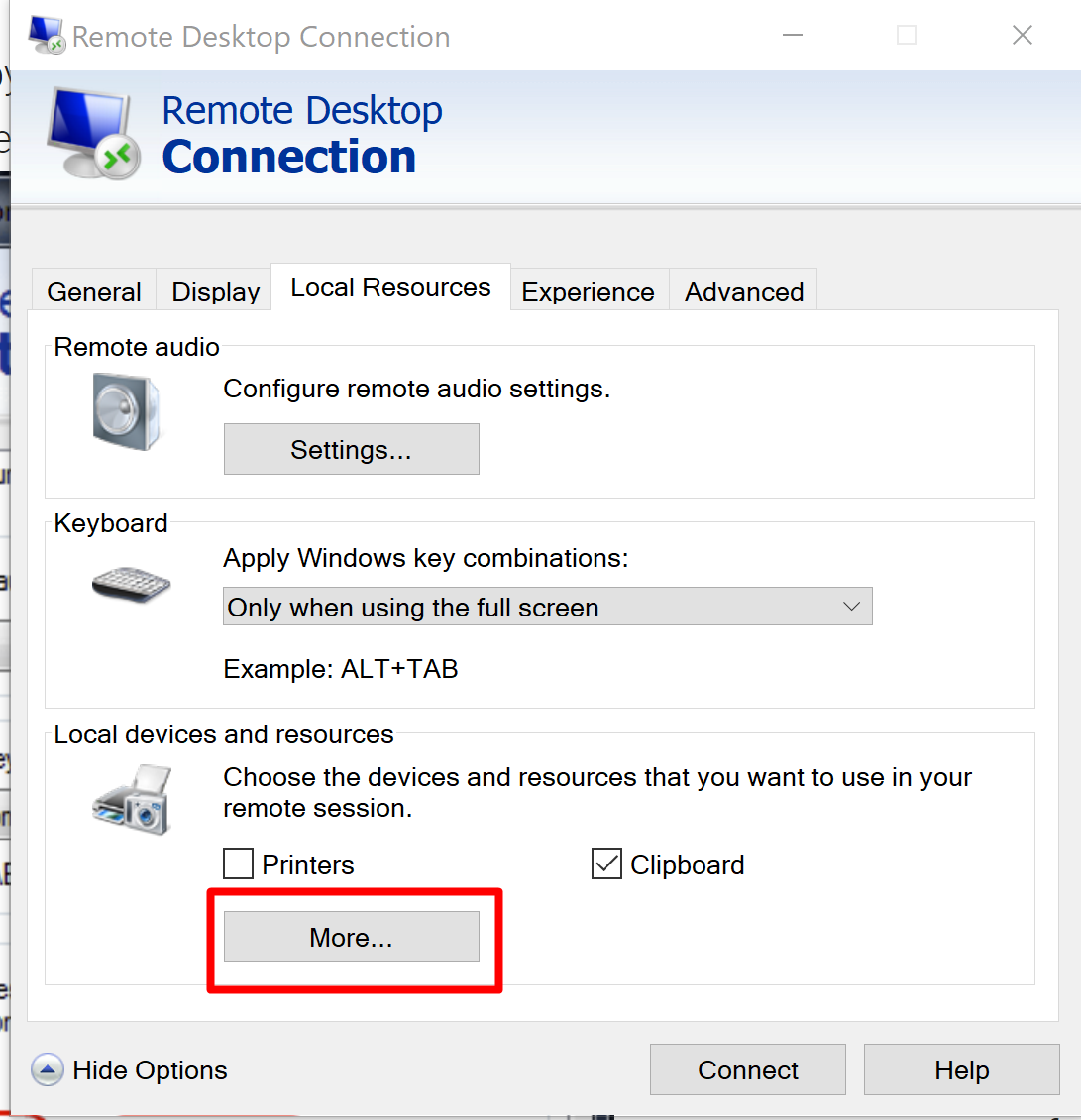
Tick Drives, or open it and tick only the drive you need, then click OK. Your drives also appear inside the session in File Explorer, under "Redirected drives and folders".

These settings apply to a new connection. Disconnect and connect again.
3. In the session: restart rdpclip
A program called rdpclip.exe carries the clipboard between the two machines. It sometimes hangs, usually after copying something large. Restarting it fixes most cases where copy and paste worked earlier the same day:
- In the remote session, press
Ctrl + Shift + Escto open Task Manager. - On the Details tab, select rdpclip.exe and click End task.
- Open File, Run new task, type
rdpclipand click OK.
Or in a Command Prompt inside the session:
taskkill /im rdpclip.exe /f
rdpclip
4. On the server: check the policy
If it has never worked on this server, an administrator has probably switched it off. You need administrator rights to look. Press Win + R, type gpedit.msc, and go to Computer Configuration, Administrative Templates, Windows Components, Remote Desktop Services, Remote Desktop Session Host, Device and Resource Redirection.

- Do not allow Clipboard redirection must be Not Configured or Disabled.
- Do not allow drive redirection likewise, for files.
Then run gpupdate /force and sign in again.
Other causes
- Very large files. Clipboard copy is slow and fails on files of several gigabytes. Use the redirected drive in File Explorer, or a file-transfer program: see transfer files with WinSCP.
- Another client. The Windows App and third-party clients have their own clipboard switch in the connection's settings.
- A shared RDP. The provider may have switched the clipboard off for everyone. Ask support; you cannot change the policy yourself.
- A security tool on your PC that guards the clipboard.
Is leaving it on safe?
With the clipboard shared, whatever you copy on your PC, a password for example, can be read inside the session. On a server you trust that is fine. When you connect to a machine you do not control, untick Clipboard and Drives.
On an admin RDP or a VPS, every setting above is yours to change. Related guides: more on copy and paste problems in RDP, clear the RDP connection history and use your microphone in a Remote Desktop session.
Questions
Why can I not copy and paste in Remote Desktop?
The Clipboard option is unticked in the client, rdpclip.exe has hung in the session, or a server policy blocks clipboard redirection.
How do I restart the RDP clipboard?
In the remote session, end rdpclip.exe in Task Manager and start it again with Run new task, rdpclip.
Why does text paste work but files do not?
Files need the Drives option under Local Resources, More, in the client.
Can I copy large files through the clipboard?
It is slow and unreliable for very large files. Use a redirected drive or a file-transfer program.