How to Install XAMPP on Ubuntu Linux Server
Download and install XAMPP on Ubuntu, start and stop it, reach the dashboard from your PC through an SSH tunnel, and know why it is not for live sites.
2 min readBy Daniel
Reviewed by the AmazingRDP technical team
Ready to move from testing to a live site? A Linux VPS gives you root access and your own IP address. See Linux VPS from $6.99
XAMPP is a ready-made bundle of the Apache web server, the MariaDB database, PHP and phpMyAdmin. One installer gives you a complete place to develop and test PHP sites. It is built for development: convenient, and not hardened. Keep that in mind when you put it on a server.
1. Download the installer
Find the current Linux installer on the official site, apachefriends.org, copy its link, and download it on the server with wget. The file name contains the version, for example:
wget https://sourceforge.net/projects/xampp/files/XAMPP%20Linux/8.2.12/xampp-linux-x64-8.2.12-0-installer.run
Use the version the site offers today, not the one in this example.
2. Make it executable and run it
chmod +x xampp-linux-x64-*-installer.run
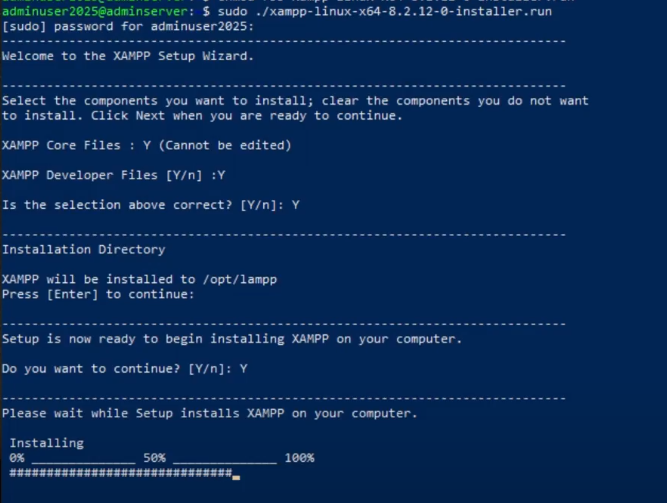
sudo ./xampp-linux-x64-*-installer.run
On a server without a desktop the installer asks its questions as text. Answer Y to the components and press Enter to accept the folder /opt/lampp.
3. Start, stop and check
sudo /opt/lampp/lampp start
sudo /opt/lampp/lampp status
sudo /opt/lampp/lampp stop
If Apache does not start, another web server is already using port 80. Stop it first, for example with sudo systemctl stop apache2.
4. Open the dashboard
On the machine itself, the dashboard is at http://localhost and phpMyAdmin at http://localhost/phpmyadmin. From another computer, XAMPP refuses access to those pages on purpose. The safe way in is an SSH tunnel. On your PC:
ssh -L 8080:127.0.0.1:80 user@SERVER_IPLeave that window open and browse to http://localhost:8080. The server believes you are local, and nothing is exposed to the internet.
5. Where your site goes
Put your files in /opt/lampp/htdocs. A folder /opt/lampp/htdocs/shop is reached at http://localhost:8080/shop. To edit without sudo, give your user the folder:
sudo chown -R $USER:$USER /opt/lampp/htdocs/shop6. Set passwords
sudo /opt/lampp/lampp securityA fresh XAMPP has a database administrator with no password. This command walks you through setting passwords. Do it even on a test server.
Start XAMPP with the server
Create /etc/systemd/system/xampp.service with:
[Unit]
Description=XAMPP
After=network.target
[Service]
Type=forking
ExecStart=/opt/lampp/lampp start
ExecStop=/opt/lampp/lampp stop
[Install]
WantedBy=multi-user.target
sudo systemctl daemon-reload
sudo systemctl enable --now xamppNot for a live website
The XAMPP makers say it themselves: it is configured to be open and easy, not secure, and it is not updated through Ubuntu's security updates. For a site that the public visits, install the same parts from Ubuntu's own packages:
sudo apt install apache2 mariadb-server php libapache2-mod-php php-mysqlThose receive security fixes with every apt upgrade.
Remove XAMPP
sudo /opt/lampp/lampp stop
sudo /opt/lampp/uninstall
For a server to develop on, and later to go live on, see our Linux VPS plans. Related guides: open or block a port in the Ubuntu firewall and fix "sudo: command not found" in Linux.
Questions
Where is XAMPP installed on Linux?
In /opt/lampp. Website files go in /opt/lampp/htdocs.
How do I start XAMPP on Ubuntu?
Run sudo /opt/lampp/lampp start.
Why can I not open phpMyAdmin from another computer?
XAMPP allows it from the local machine only. Use an SSH tunnel and open it through localhost.
Can I host a real website with XAMPP?
It is meant for development. For a public site, install Apache, MariaDB and PHP from Ubuntu's packages, which get security updates.