How to Enable Hibernate Mode on Windows 11
Add Hibernate to the Windows 11 power menu through Control Panel or one command, see how it differs from Sleep, and find out why the option can be missing.
2 min readBy Swati
Reviewed by the AmazingRDP technical team
Need programs to keep running while your laptop hibernates? A remote desktop stays on for you. See Cheap RDP from $4.99
Hibernate saves everything that is open, programs and documents, to the disk and then switches the computer off completely. When you start it again, you are where you left off. Windows 11 hides the option by default. Switching it on takes a minute.
Hibernate, Sleep or Shut down?
| Sleep | Hibernate | Shut down | |
|---|---|---|---|
| Open work is kept | Yes, in memory | Yes, on disk | No |
| Power used | A little | None | None |
| Survives an empty battery | No | Yes | Nothing to lose |
| Time to resume | A second or two | Several seconds | A full start |
Use Sleep for a lunch break and Hibernate for overnight or a journey, when the laptop will be off the charger for long.
Way 1: Control Panel
- Open the Start menu, type Control Panel and open it.
- Go to Hardware and Sound, Power Options, and click Choose what the power buttons do on the left.
- Click Change settings that are currently unavailable.
- Under Shutdown settings, tick Hibernate and click Save changes.
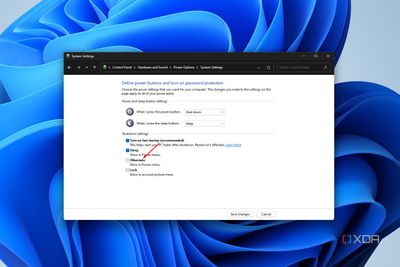
Hibernate now appears in the Start menu's power button. On the same page you can make the laptop hibernate when you close the lid or press the power button.
Way 2: one command
If the Hibernate checkbox is not on that page, hibernation is switched off at system level. Open Command Prompt or Terminal as administrator and run:
powercfg /hibernate on
Then do Way 1 to add it to the menu. To switch it off again and free the disk space:
powercfg /hibernate offWay 3: hibernate right now, without the menu
shutdown /hPut this in a shortcut on the desktop for a one-click hibernate.
Hibernate automatically after sleeping
A laptop can go to Sleep first and move to Hibernate if you stay away. As administrator:
powercfg /change hibernate-timeout-dc 120
powercfg /change hibernate-timeout-ac 0
The first line hibernates after 120 minutes on battery; the second switches the timer off while on the charger.
Why Hibernate is missing or fails
Ask Windows what it supports:
powercfg /aIt lists the available power states and, for the others, the reason. The common ones:
- "Hibernation has not been enabled." Run
powercfg /hibernate on. - "The hypervisor does not support this standby state" or a note about a virtual machine. Windows in a virtual machine, which includes every VPS, cannot hibernate.
- A device driver blocks it. Update the graphics and chipset drivers from the PC maker.
- Not enough disk space. Hibernate needs a file,
C:\hiberfil.sys, of roughly 40% of your memory size. Free some space, or shrink the file withpowercfg /hibernate /type reduced, which keeps fast start-up but removes the Hibernate option.
Good to know
- Programs do not run while the PC hibernates. Downloads, backups and remote connections stop.
- If the drive is encrypted with BitLocker, the saved state is encrypted with it.
- Restart the PC properly now and then; updates need it.
If something must keep running while your laptop is off, such as a download, a trading program or a long job, it belongs on a machine that never sleeps. A remote desktop is one; see how to connect to RDP from a desktop.
Questions
How do I enable Hibernate in Windows 11?
In Control Panel, Power Options, "Choose what the power buttons do", tick Hibernate. If it is missing, run powercfg /hibernate on as administrator first.
What is the difference between Sleep and Hibernate?
Sleep keeps your work in memory and uses a little power. Hibernate saves it to disk and uses none.
Why is there no Hibernate option on my PC?
It is switched off at system level, a driver blocks it, or Windows runs in a virtual machine. powercfg /a tells you which.
Can a VPS or a server hibernate?
No. Windows in a virtual machine does not support hibernation, and a server is meant to stay on.