Xfce vs GNOME: Which Linux Desktop Is Right for You?
Xfce and GNOME compared: memory use, look and workflow, customising, Wayland support and remote desktop use, with a clear answer for each kind of machine.
3 min readBy Shailabh
Reviewed by the AmazingRDP technical team
Putting a desktop on a server? A light one such as Xfce runs well on a Linux VPS with 2 GB or more. See Linux VPS from $6.99
The desktop environment is the part of Linux you look at: panels, menus, windows, the settings program, the file manager. GNOME is the default on Ubuntu, Fedora and Debian. Xfce is the best-known light alternative. Both are mature and free, and you can install both side by side and choose at login. They suit different machines and different habits.
At a glance
| Xfce | GNOME | |
|---|---|---|
| Memory in use after login | Roughly 500 to 800 MB | Roughly 1.2 to 1.8 GB |
| Layout | Classic: panel, application menu, desktop icons | Its own: top bar, Activities overview, no desktop icons by default |
| Customising | Almost everything, in the settings | Little out of the box; more through extensions |
| Display system | X11; Wayland support is still being built | Wayland |
| Touchpads and touchscreens | Basic | Very good gestures |
| Over a remote connection | Light and quick | Heavier; animations cost bandwidth |
| Pace of change | Slow and steady | A new version every six months |
Memory figures depend on the distribution and version; take them as a ratio.
Look and workflow
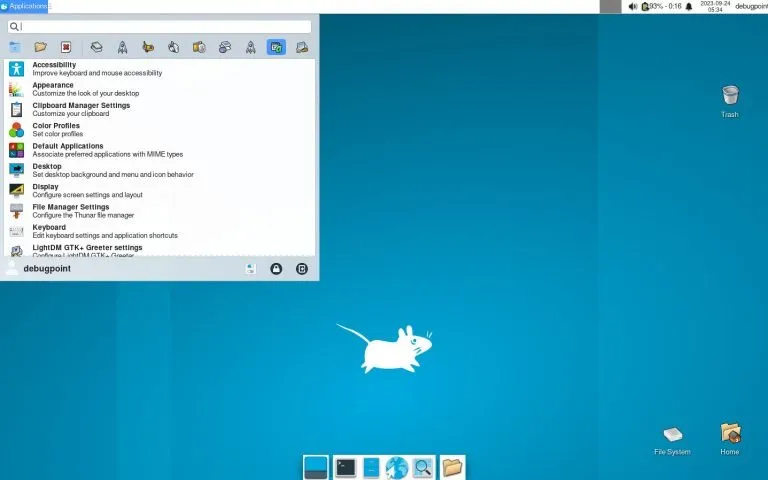
Xfce looks familiar to anyone who has used Windows: a panel with a menu, a task list and a clock, and files on the desktop. Nothing moves unless you move it.
GNOME does things its own way. Pressing the Super key opens an overview of all windows, workspaces and a search field; you start programs by typing a few letters. There is no minimise button by default and no taskbar. People who take to it work fast with the keyboard. People who do not usually install extensions to bring back a dock or a taskbar.
Customising
In Xfce, the panel, menus, window buttons, shortcuts and themes are all changed in the settings program, without add-ons. Settings survive upgrades for years.
GNOME keeps its settings few on purpose. More is possible with the Tweaks tool and with extensions from extensions.gnome.org, which add docks, tray icons, tiling and much else.
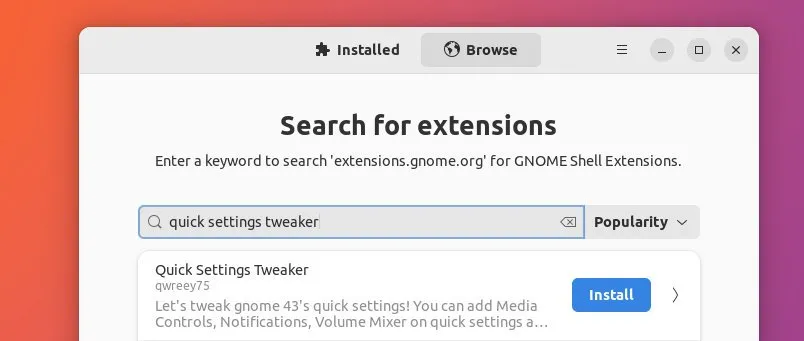
The catch: extensions are written by volunteers and can stop working when a new GNOME version changes its internals. After a big upgrade, expect to wait for some of them.
Performance
On a current PC with 8 GB or more, both feel fast and the difference does not matter. On an old laptop, a small virtual machine or a single-board computer, Xfce leaves noticeably more memory for your programs and has no animations to slow things down.
Wayland and X11
Linux is moving from the old X11 display system to Wayland. GNOME made the move years ago, and the newest GNOME versions run on Wayland only, which brings smoother graphics, better support for mixed-resolution screens and safer separation between programs. Xfce is still an X11 desktop; its Wayland support exists in an early form. Today that is not a drawback, and for remote desktop tools it is even an advantage, because most of them were built for X11.
On a server or over Remote Desktop
If the desktop will be used through xrdp or VNC, choose Xfce. It draws simple windows that travel well over a network, and it uses little memory on a machine whose main job is something else. See how to install a desktop on an Ubuntu server and how to connect to an Ubuntu server through RDP.
Which one?
- Old or small hardware, a VPS, a remote desktop: Xfce.
- A modern laptop, a touchpad you like to use, a high-resolution screen: GNOME.
- You want it to look and work your way and stay that way: Xfce.
- You want it to work without setting anything up: GNOME.
Try both
On Ubuntu, add Xfce next to GNOME:
sudo apt install xfce4 xfce4-goodiesSign out, click your name on the login screen, and choose the session from the gear icon. Or install a ready-made edition: Xubuntu and Fedora's Xfce spin ship Xfce set up well from the start.
For a Linux machine to try a desktop on, see our Linux VPS plans. Related: Ubuntu Server vs Ubuntu Desktop and pros and cons of Fedora Linux.
Questions
Is Xfce faster than GNOME?
It uses less memory and has no animations, so it feels faster on old or small machines. On modern hardware the difference is small.
Which is better for a remote desktop, Xfce or GNOME?
Xfce. It is lighter and works well with xrdp and VNC.
Does Xfce support Wayland?
Only in an early form. Xfce is still mainly an X11 desktop.
Can I have Xfce and GNOME installed together?
Yes. Install both and choose the session on the login screen.