How to Install and Use VB-Cable on Windows Server 2019
VB-Cable gives a Windows server a virtual sound device, so streaming and recording programs get audio without a sound card. Download, install and set it up.
2 min readBy Shailabh
Reviewed by the AmazingRDP technical team
Streaming from a server around the clock? See our Streaming RDP plans. See Streaming RDP from $15.99
A server in a datacentre has no sound card. Programs that play or capture sound, such as OBS Studio, a browser playing a video, or a calling app, then find no audio device and stay silent. VB-Cable is a small free driver that adds a virtual one: whatever is played into its output comes out of its input, like a cable between two sockets. The steps are the same on Windows Server 2019 and 2022.
What you get
- CABLE Input: a playback device. Programs play their sound into it.
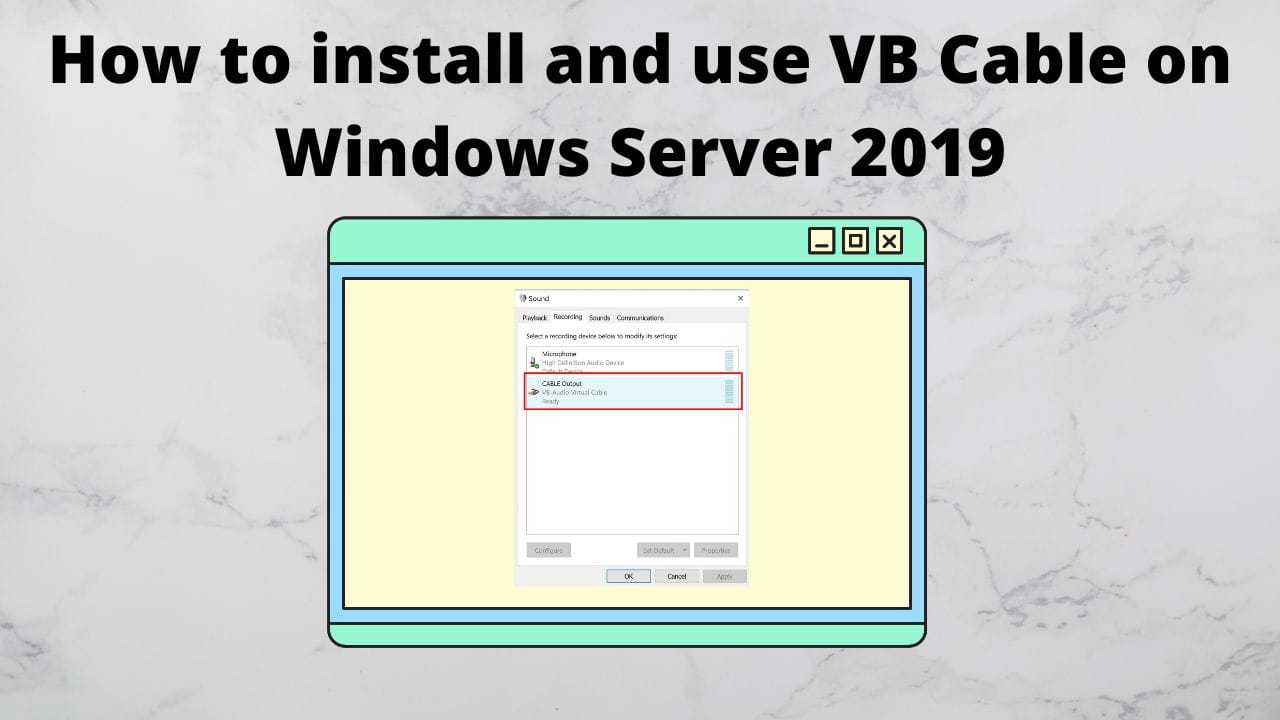
- CABLE Output: a recording device. Programs that listen to it hear everything that was played into CABLE Input.
1. Download
Open the official site, vb-audio.com, go to the VB-Cable page and download the Windows package (a ZIP file). Use the official site only.

2. Extract
In the Downloads folder, right-click the ZIP file and choose Extract All. The installer does not work when started from inside the ZIP.

3. Install
In the extracted folder, right-click VBCABLE_Setup_x64 and choose Run as administrator. (The file without "x64" is for 32-bit systems; servers are 64-bit.)

Click Install Driver, and confirm the Windows security question.

Restart the server when the installer has finished.
4. Make sure the audio service runs
On Windows Server the Windows Audio service is off by default, and no sound device works without it. In PowerShell as administrator:
Set-Service -Name Audiosrv -StartupType Automatic
Start-Service -Name Audiosrv
Details are in how to enable audio in Windows Server 2022.
5. Choose where the sound stays
When you connect by Remote Desktop, the client decides whether the server's sound is sent to your computer. For VB-Cable you want it to stay on the server:
- In Remote Desktop Connection, click Show Options, then Local Resources.
- Under Remote audio, click Settings and choose Play on remote computer.
- Connect.
6. Set the devices
On the server, right-click the speaker icon and open Sound settings. Set CABLE Input as the output device. In the program that should hear the sound, choose CABLE Output as its microphone or audio source.
Example: desktop sound in OBS Studio
- Set CABLE Input as the server's output device, as above.
- In OBS, open Settings, Audio, and set Desktop Audio to CABLE Input, or add an Audio Input Capture source with CABLE Output.
- Play something on the server; the level meter in OBS moves.
If it does not work
- No CABLE devices after installing. The installer was not run as administrator, or the server was not restarted.
- Devices are there but silent. The Windows Audio service is not running (step 4), or the program plays to another device.
- You hear nothing yourself. That is expected: the sound goes into the cable, not to your speakers. To listen as well, open the properties of CABLE Output, the Listen tab, and tick Listen to this device.
Installing a driver needs administrator rights, so this works on an admin plan or VPS, not on a shared RDP. For streaming from a server, see Streaming RDP. Related: enable the microphone on Windows Server 2022.
Questions
What is VB-Cable used for?
It adds a virtual sound device, so one program's sound output can be used as another program's input. On a server it replaces the missing sound card.
Is VB-Cable free?
Yes. It is donationware: free to use, with a request to donate.
Does VB-Cable work on Windows Server 2022?
Yes. The installation is the same as on Windows Server 2019.
Why are there no sound devices after installing?
Run the setup file as administrator, restart the server, and make sure the Windows Audio service is running.