How to Install Internet Information Services (IIS) on Windows Server
Install the IIS web server on Windows Server with Server Manager or one PowerShell line, check that it works, publish a first site and open the firewall.
2 min readBy Daniel
Reviewed by the AmazingRDP technical team
Hosting a site on IIS? A Windows VPS gives you Windows Server with full admin access and a public IP address. See Windows VPS from $8.99
Internet Information Services, IIS, is the web server that is part of Windows Server. It hosts websites and web applications, above all those built with ASP.NET, and it is installed as a server role in a few minutes.
With one PowerShell line
Open PowerShell as administrator:
Install-WindowsFeature -Name Web-Server -IncludeManagementToolsThat installs the web server and its management console. No restart is needed.
With Server Manager
- Open Server Manager and click Add roles and features.
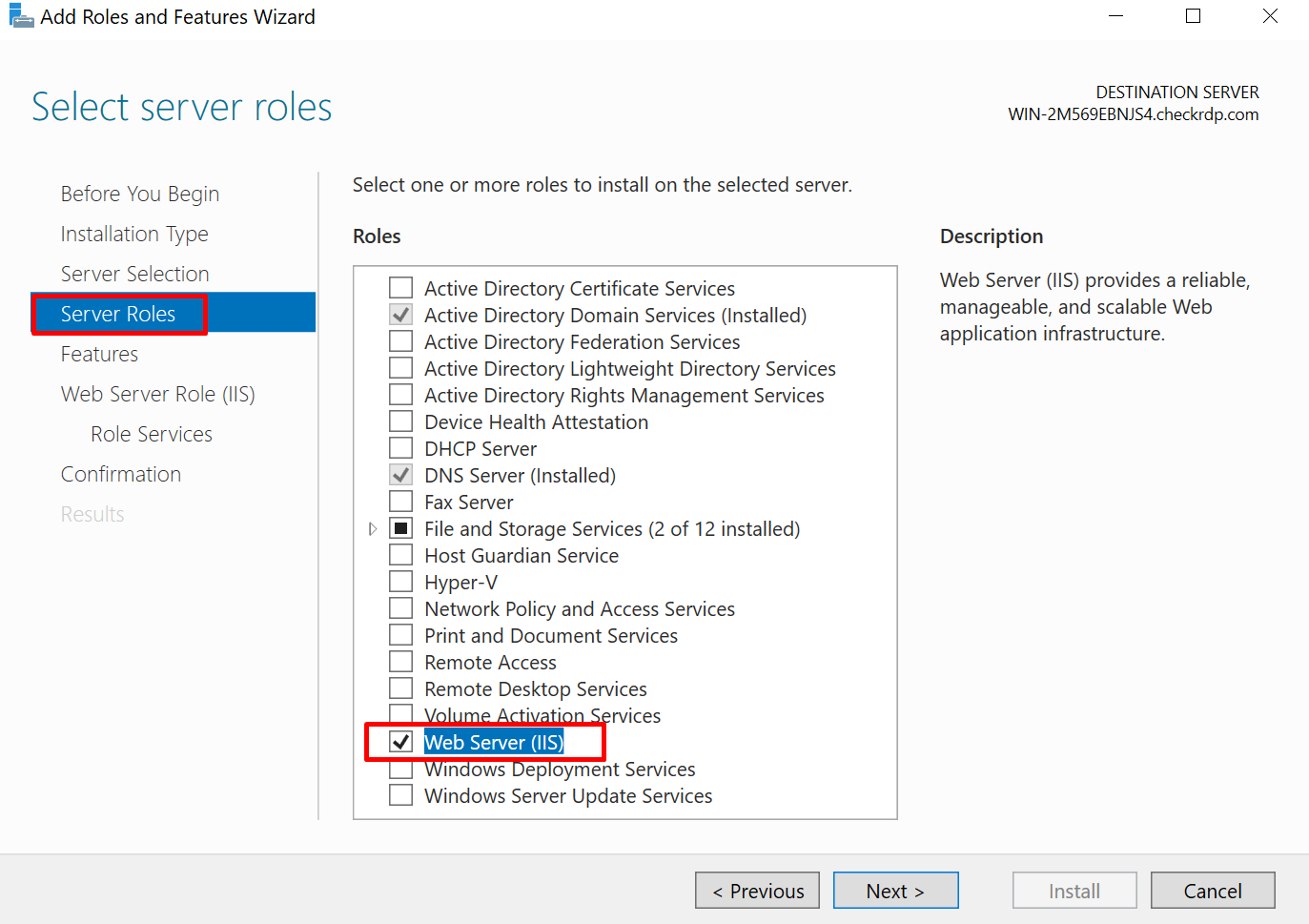
- Click Next until you reach Server Roles, and tick Web Server (IIS).
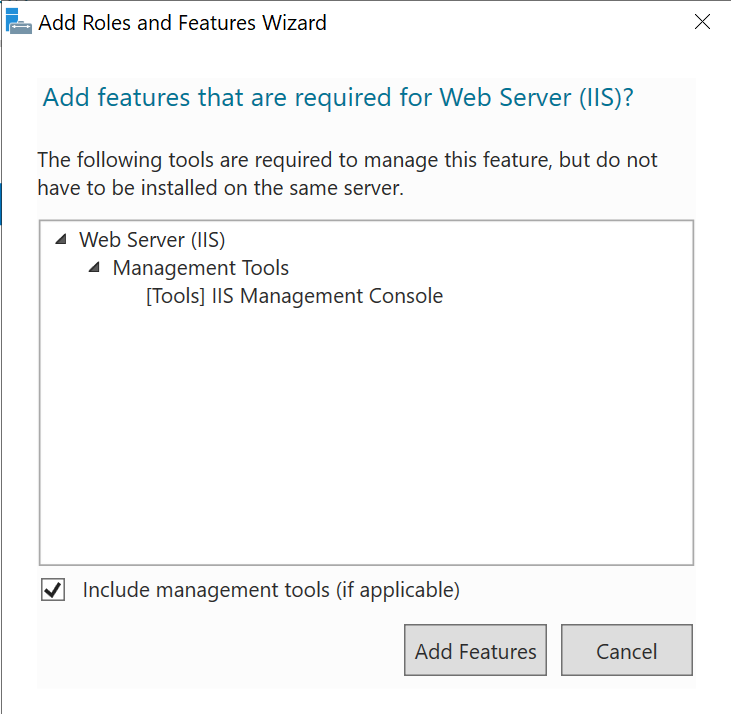
- A window asks to add the management tools. Click Add Features.
- Click Next through Features and the role description. On Role Services the defaults are enough for static pages; add what your application needs (below).
- Click Install and wait for it to finish.
Check that it works
On the server, open a browser and go to http://localhost. The IIS welcome page appears. From another computer, use the server's IP address.
Open the firewall
The installation switches on the rule for HTTP (port 80). For HTTPS:
New-NetFirewallRule -DisplayName "HTTPS" -Direction Inbound -Protocol TCP -LocalPort 443 -Action AllowIf a provider firewall sits in front of the server, allow 80 and 443 there too. More in enable a port through PowerShell.
Your first site
The default site serves files from C:\inetpub\wwwroot. Put an index.html there and reload the page. For a site of its own:
- Open Internet Information Services (IIS) Manager from the Tools menu.
- Right-click Sites and choose Add Website.
- Enter a name, the folder with the site's files, and under Host name the domain, for example
www.example.com.
With host names, many sites share one IP address and port.
Role services you may need
| For | Add |
|---|---|
| ASP.NET Framework applications | Web-Asp-Net45 |
| ASP.NET Core applications | The ".NET Hosting Bundle" from Microsoft's .NET site (not a role service) |
| PHP | Web-CGI, then PHP in its Non Thread Safe build: see installing PHP on Windows |
| Passwords for folders | Web-Basic-Auth or Web-Windows-Auth |
Install-WindowsFeature Web-Asp-Net45, Web-CGIHTTPS
A public site needs a certificate. The free tool win-acme obtains one from Let's Encrypt, binds it to the site and renews it by itself. The domain must already point at the server.
Good habits
- Give each site its own application pool, so that one misbehaving site does not take the others down.
- Remove the default site once your own is running.
- Install only the role services you use; each is more to keep updated.
- Logs are in
C:\inetpub\logs\LogFiles; they grow, so clear old ones.
Remove IIS
Uninstall-WindowsFeature -Name Web-Server -IncludeManagementToolsA Windows VPS has the administrator rights this needs. Choosing between systems for a web server? See Windows Server vs Linux server.
Questions
How do I install IIS on Windows Server?
Run Install-WindowsFeature -Name Web-Server -IncludeManagementTools in PowerShell as administrator, or add the Web Server (IIS) role in Server Manager.
How do I check that IIS is running?
Open http://localhost in a browser on the server. The IIS welcome page appears.
Where does IIS keep website files?
The default site uses C:\inetpub\wwwroot. Each site you add can use its own folder.
Is IIS free?
Yes. It is part of Windows Server and of Windows 10 and 11.