How to Increase C Drive Space on a Windows VPS or Private RDP
Extend the C drive on Windows Server with Disk Management or diskpart after a disk upgrade, get past a recovery partition in the way, and free space first.
3 min readBy Soumya
Reviewed by the AmazingRDP technical team
Outgrown your disk? See our Windows VPS plans, or open a ticket to move to a bigger plan. See Windows VPS from $8.99
A full C drive stops updates, slows Windows down and can keep programs from starting. On a Windows VPS or private RDP there are two answers: free space on the drive you have, or make the drive larger. Enlarging works only when there is unallocated space directly after C on the same disk.
First: free space
- Disk Clean-up. Press
Win + R, entercleanmgr, choose C, then Clean up system files. Old Windows Update files are usually the largest item. - Update leftovers, from an administrator command prompt:
Dism /Online /Cleanup-Image /StartComponentCleanup- Find the big folders. Settings, System, Storage shows what uses the space. Downloads, browser profiles, logs and temporary files are the usual finds.
- The page file. On a server with plenty of memory,
C:\pagefile.syscan be several gigabytes; its size is set under System, Advanced system settings, Performance, Advanced, Virtual memory.
Where the extra space comes from
| Situation | What to do |
|---|---|
| You upgraded the plan and the disk is now larger | The new space appears as "Unallocated" after C. Extend C into it |
| The disk has a second partition (D:) you do not need | Back up its data, delete it, extend C into the space |
| Neither | Free space as above, or ask support about a bigger plan |
On a shared RDP this does not apply: you have a share of a common server and no access to its disks.
Extend C with Disk Management
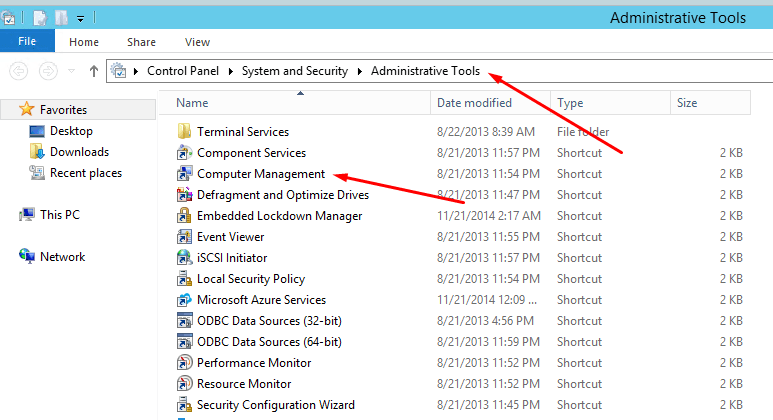
- Right-click the Start button and choose Disk Management (or press
Win + Rand enterdiskmgmt.msc). - Look at Disk 0. If a partition you no longer need sits right after C, right-click it and choose Delete Volume. This erases everything on that partition.

- Right-click C: and choose Extend Volume.

- In the wizard, click Next, keep the suggested amount (all of the free space), then Next and Finish.
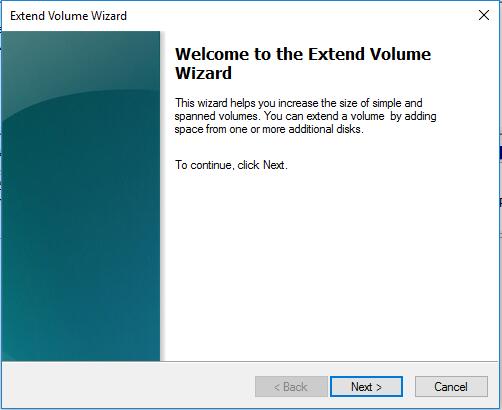
C grows at once, without a restart.
The same with diskpart
diskpart
list volume
select volume C
extend
exit
If the disk was enlarged while Windows was running and the new space does not show, run rescan inside diskpart first, or choose Action, Rescan Disks in Disk Management.
"Extend Volume" is greyed out
- The free space is not directly after C. Often a small Recovery partition sits between them. Windows cannot move it. The usual way out is to disable the recovery environment (
reagentc /disable), delete that partition with diskpart (delete partition override), extend C, and enable it again (reagentc /enable). Take a backup or snapshot first; a mistake here can leave Windows unable to start. - There is no unallocated space. The disk is exactly as large as its partitions.
- The disk uses the old MBR layout and C would pass 2 TB. MBR cannot go further.
Do not shrink D from the wrong end
Shrinking D frees space after D, not after C, so C still cannot use it. Disk Management cannot move partitions. That is why the method above deletes the neighbouring partition instead of shrinking it.
Need a bigger disk?
Shared RDP and VPS plans can be moved to a bigger plan: open a ticket. After the move, extend C as shown. See our Windows VPS plans. On Linux the same job is done with LVM: see how to set up LVM.
Questions
How do I extend the C drive on Windows Server?
Open Disk Management, right-click C and choose Extend Volume. There must be unallocated space directly after C.
Why is Extend Volume greyed out?
There is no unallocated space directly after C. Often a recovery partition sits in between.
Do I need to restart after extending C?
No. The drive grows at once.
Can I increase disk space on a shared RDP?
No. A shared RDP is an account on a common server. Move to a bigger plan or to a VPS.